Contracts, assets, partners. Every custom object record, one grid away.
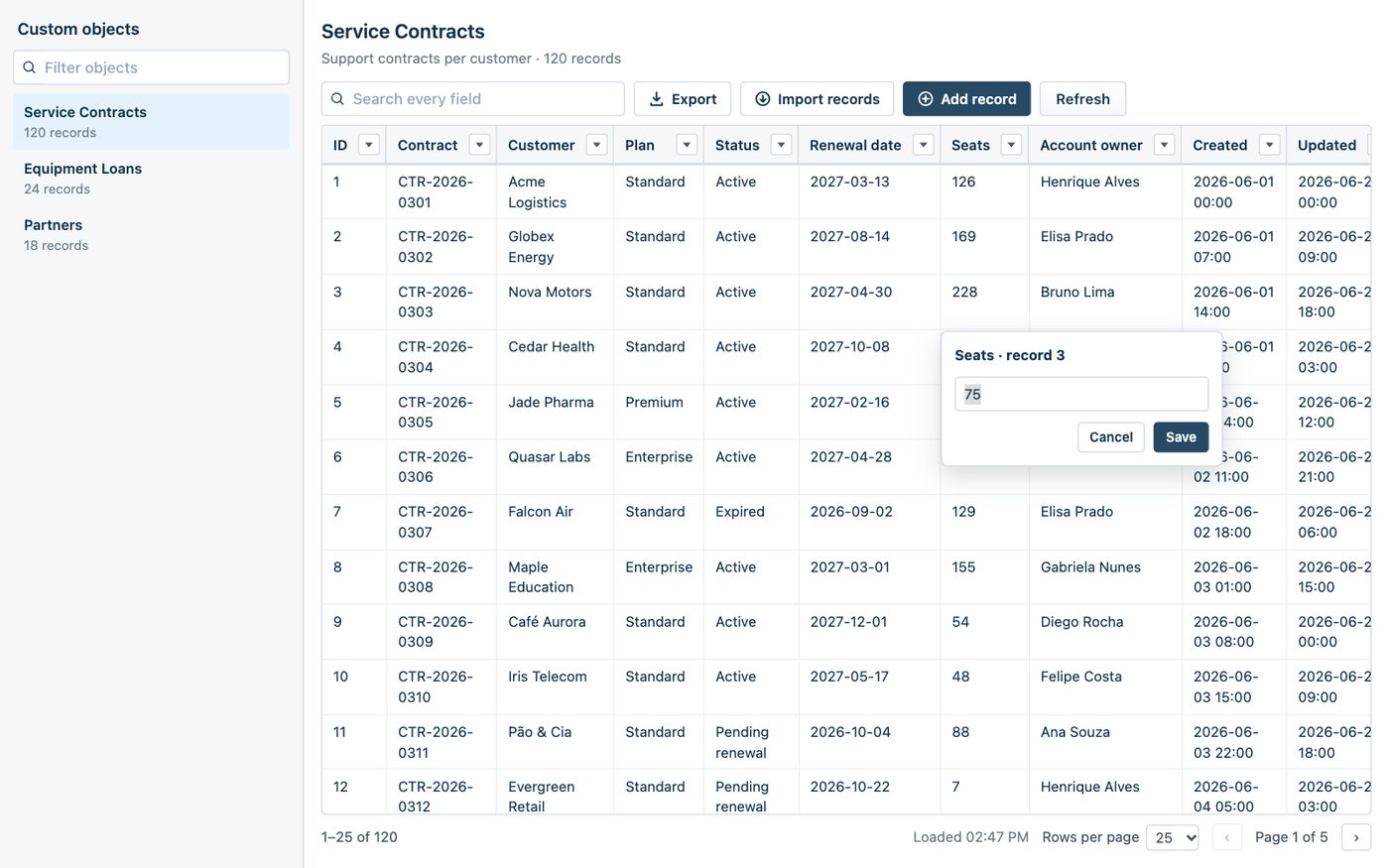
Custom Objects hold the data your team works with every day, such as contracts, assets and partners, but Freshdesk and Freshservice give agents no simple place to browse them. Custom Object Explorer is a full-page app that lists every custom object in the account, with its record count, and opens any of them in a fast grid: search, filter, sort and export, and, once an admin allows it, add, edit and import records.
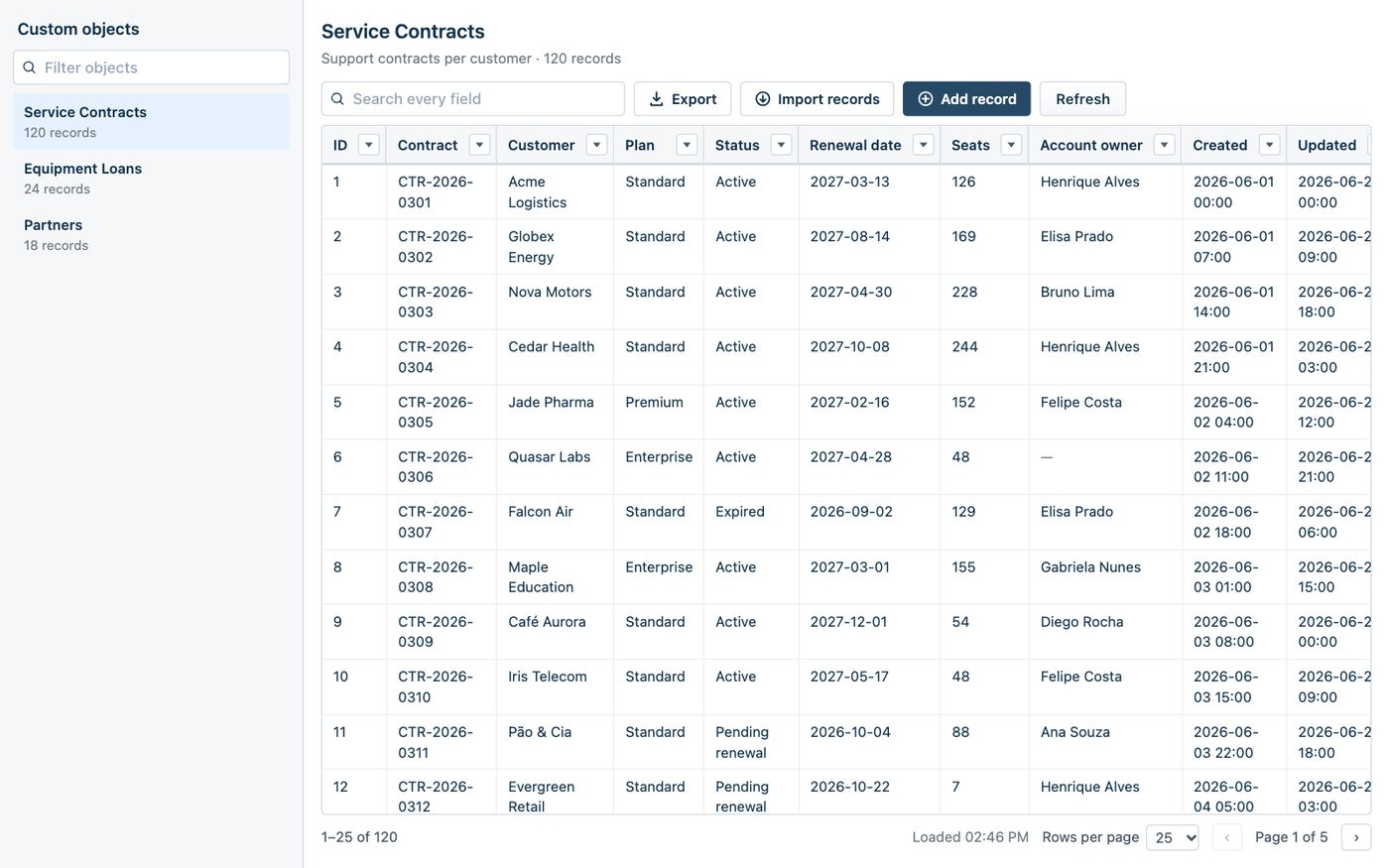
Browse it like a spreadsheet. Change it only if you allow it.
The app opens as a full page from the left navigation. It loads the records of the object an agent opens into the agent's browser, so search, sorting and filters need no further requests.
Find any record
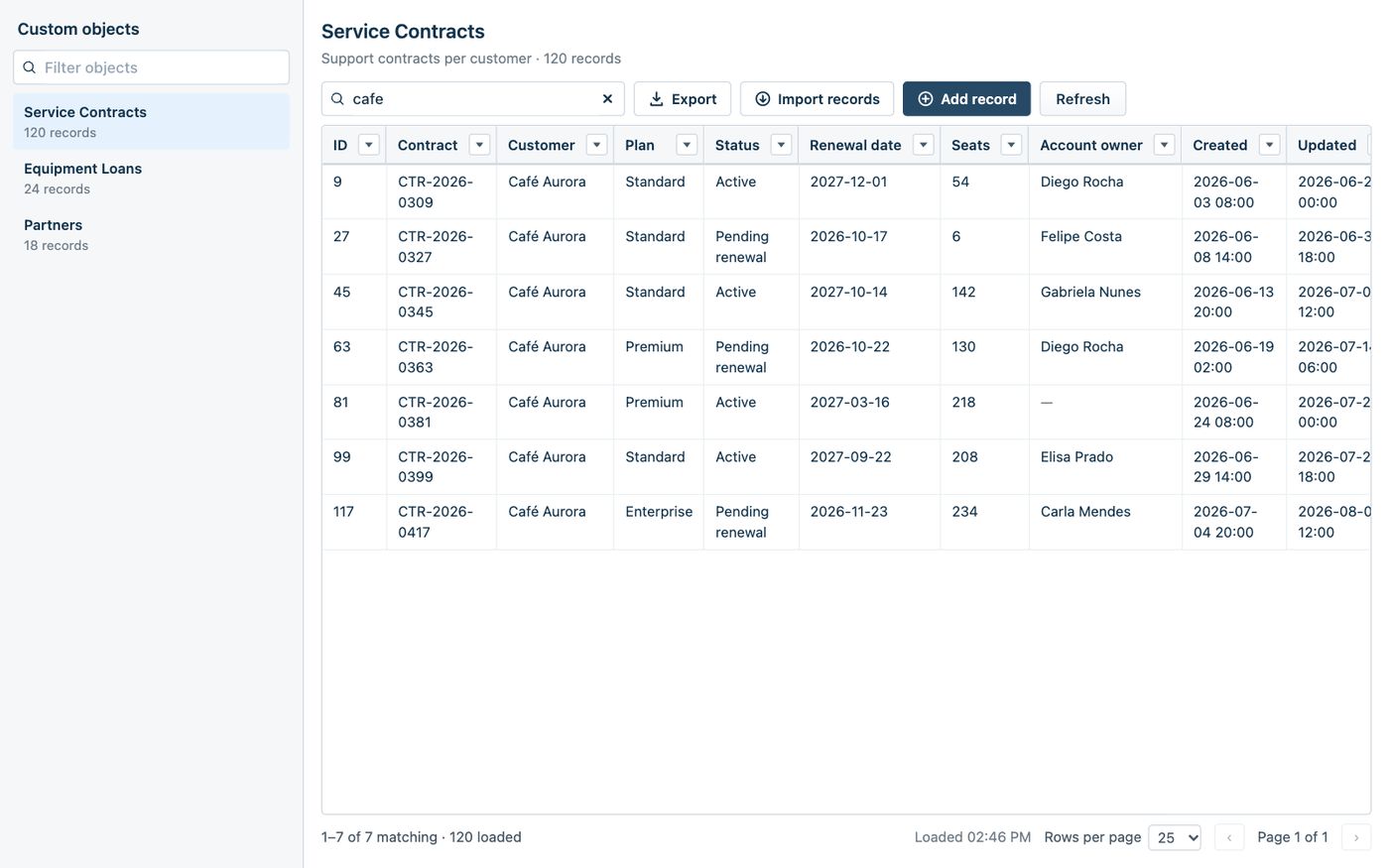
Search every field at once, ignoring case and accents: "joao sao paulo" finds "João, São Paulo". Sort any column, page through records, and open a record to see every field.
Filter and export
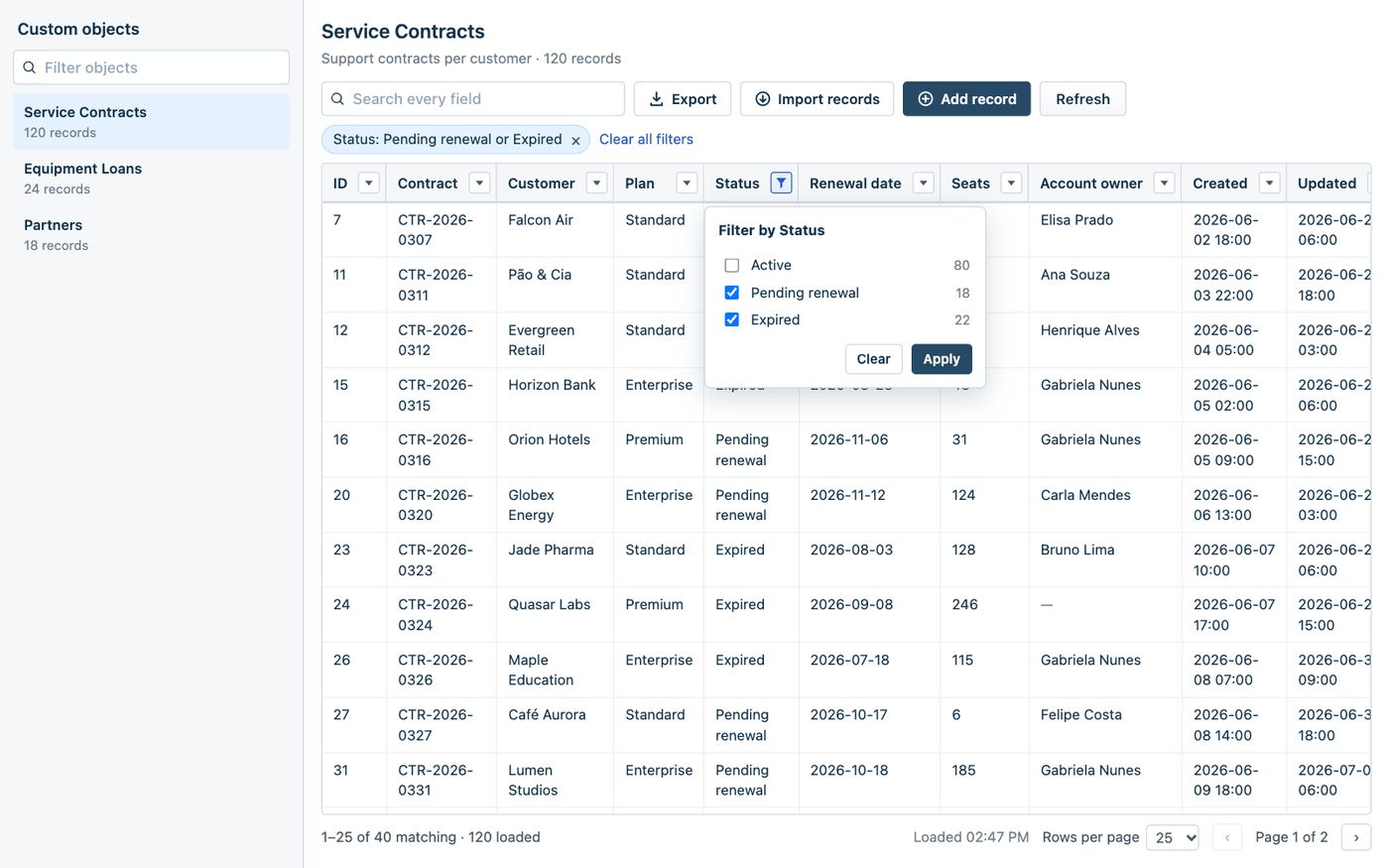
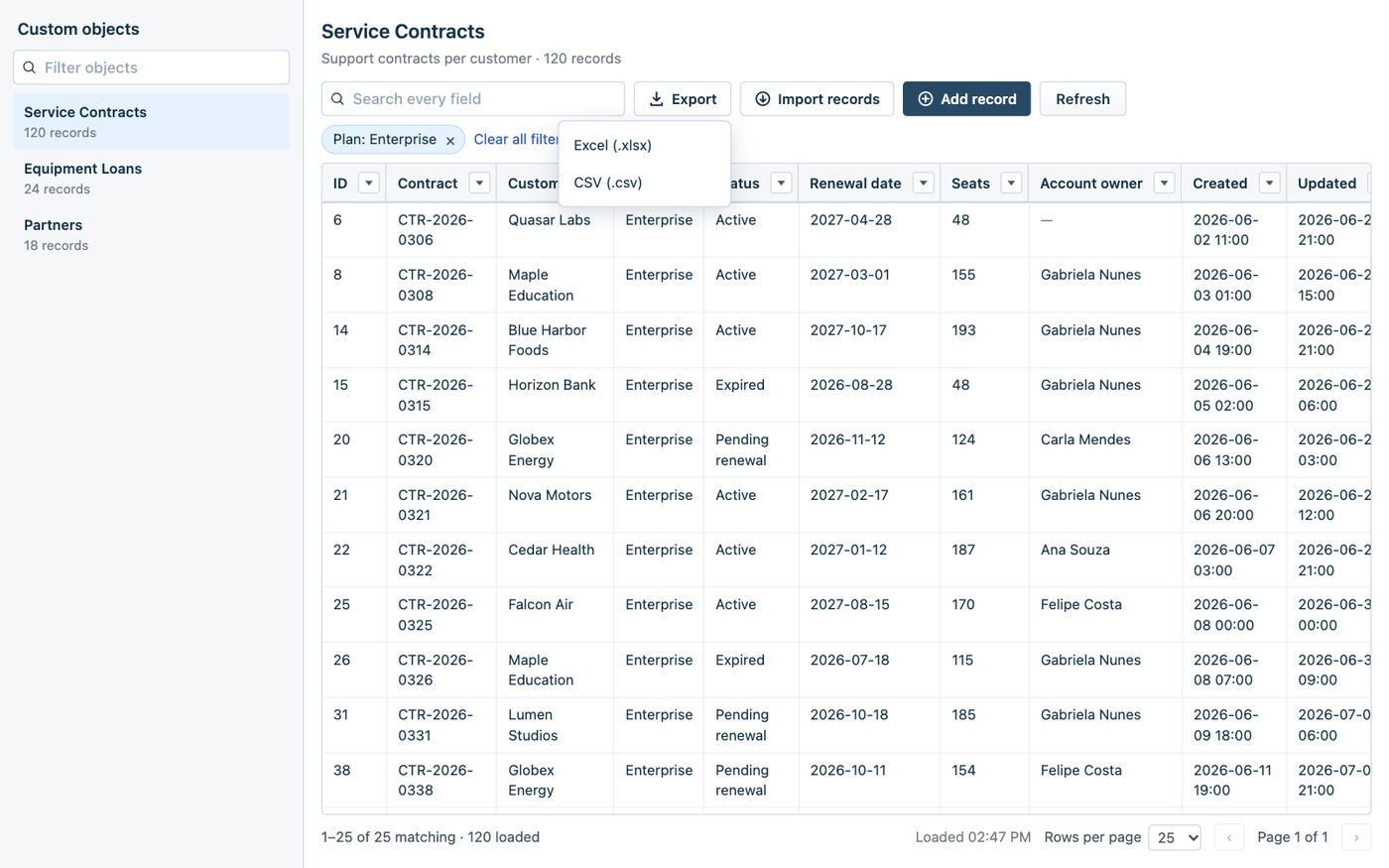
A filter on every column, shaped by its type: text, number and date ranges, or values to tick. Export what you see, searched and filtered, to Excel or CSV.
Add, edit and import
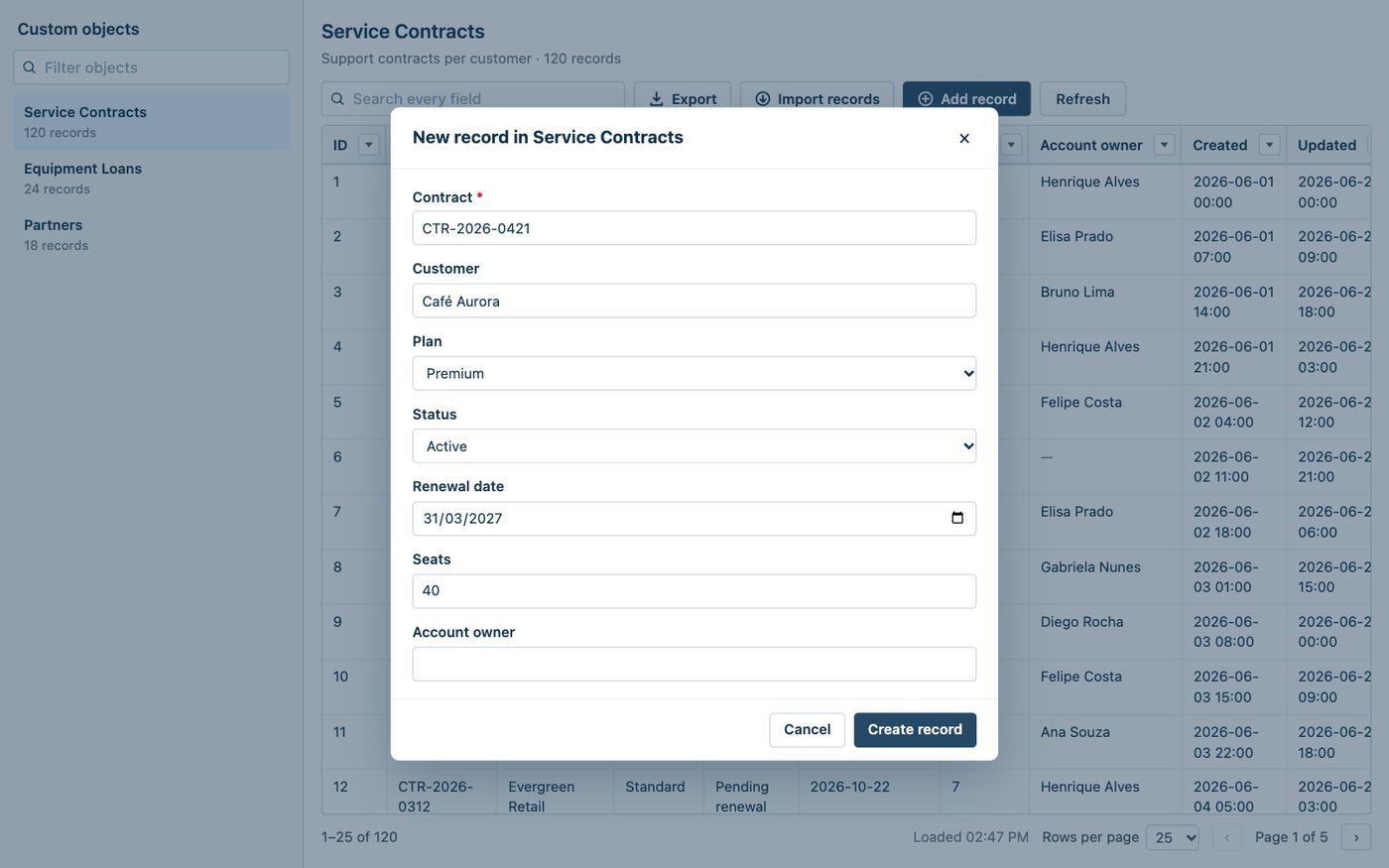
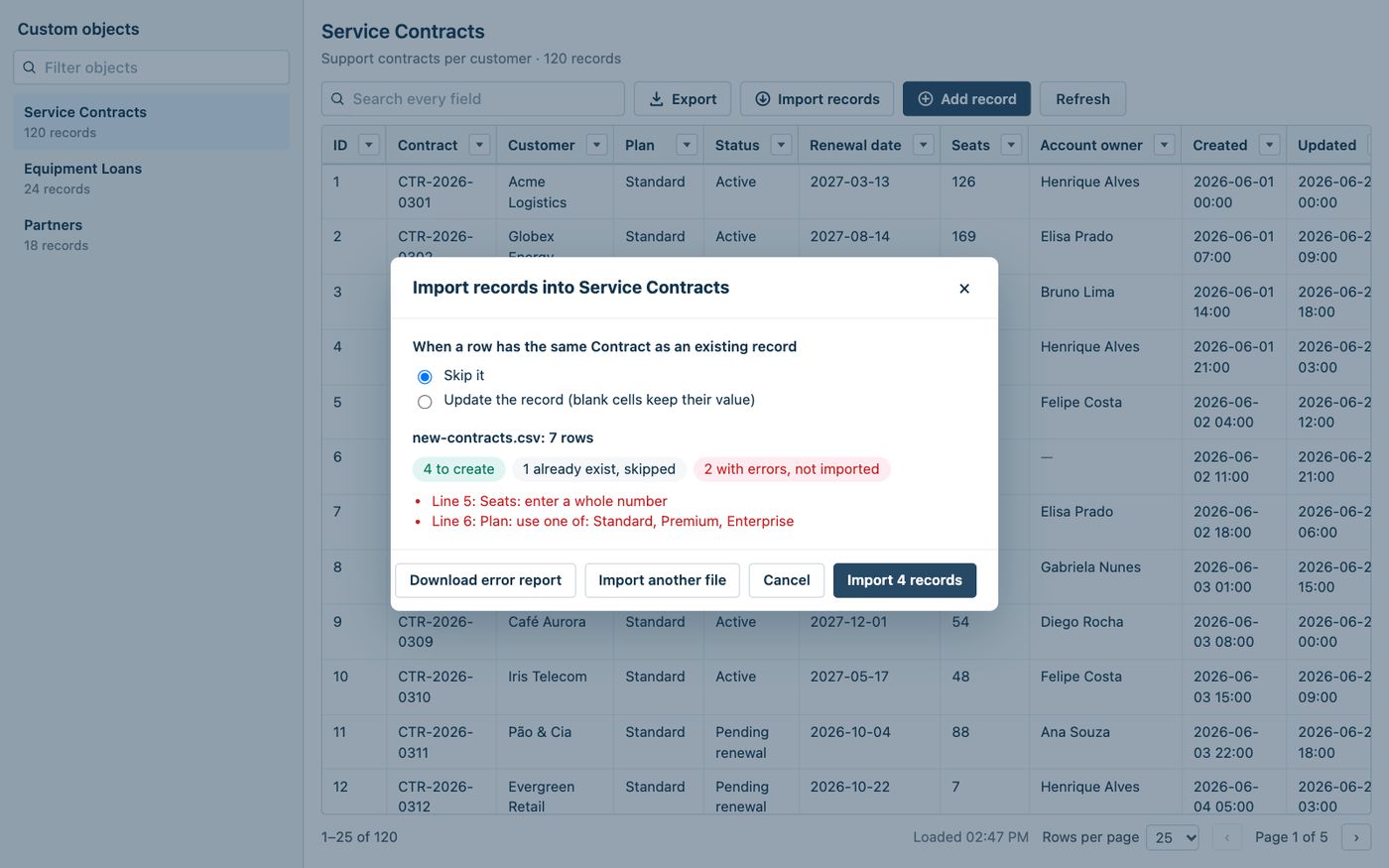
Add and edit records in a form built from the object's fields, checked before saving. Import from CSV or Excel, starting from a generated template, with a preview that lists every error by line before anything is sent.
What the agent sees.
Screenshots of the real app, with made-up data.
Setup: about two minutes.
Copy an API key
From an agent who can view custom objects, and edit them if you will allow changes. Custom Objects must be enabled on the account. On Freshservice, switch on the API key in the agent's profile under Admin → User Management → Agents.
Install the app
In Admin → Apps, search for Custom Object Explorer, and fill in your account domain (such as acme.freshdesk.com), the API key, and whether agents may add, edit and import records. The app is coming to the Freshworks Marketplace soon.
Open it
Open Custom Object Explorer from the apps icon in the left navigation. The left column lists every custom object with its record count; click one to browse its records.
Your records stay in your account.
The app has no servers and no database of its own, and sends nothing to Red Lotus or any third party. Records are shown in the agent's browser and discarded when the agent leaves the app. Exports are built in the browser and saved to the agent's device; an import file is read in the browser and never uploaded, only the records it contains are sent to your account.
It is read-only until an admin turns on Allow adding, editing and importing records, and it never deletes records or changes schemas. The API key is a secure installation parameter, used only on Freshworks' servers, so it never reaches agents' browsers and we never see it. The app sets no cookies and uses no analytics.
$19 per account per month.
Custom Object Explorer is sold through the Freshworks Marketplace, per account per month: USD 19, AUD 29, BRL 99, EUR 17, GBP 15, INR 1599 or ZAR 349. Freshworks handles billing, renewals, cancellations and refunds. You can cancel by uninstalling the app.
Common questions.
Does it work on Freshdesk and Freshservice?
Yes, one app for both, as a full page in the left navigation. In Freshservice, the object list also shows each object's workspace. Custom Objects must be enabled: on Freshdesk they are an Enterprise feature that Freshworks enables on request.
Can agents change or delete records?
Adding, editing and importing are off until an admin turns on Allow adding, editing and importing records, and changes are made as the API key's agent. Records can't be deleted from the app; use the product's own Custom Objects screens.
What can each agent see?
Every agent who can open the app sees what the configured API key can see. If agents only need to read, use a key that can only read custom objects.
How many records does it handle?
Up to 10,000 records per object are loaded, and search and sort cover those. Imports take up to 5 MB and 2,000 rows per file, and only the loaded records are checked for duplicates.
Does it keep my data?
No. Records stay in the agent's browser while the app is open and are discarded when the agent leaves it or reloads the page. Uninstalling the app leaves nothing behind.
How do I get support?
Email info@redlotus.com.br. We aim to reply within 3 business days, or 5 for critical issues.
Give your team a way into its custom objects.
Questions about Custom Object Explorer, or a feature you'd like it to have? Write to us.
Back to all solutions