Did every store open right today? Now you can see it.
Checklists for Freshservice takes the opening, closing and safety checklists your stores fill in on paper and puts them on the store manager's phone. They answer at the store, with photos and a signature. Each answer goes back to a Freshservice ticket with a grade out of 10 and a Passed or Failed result. Head office sees every store on one dashboard.
Head office cannot see whether every store opened right.
A retail chain runs on checklists. Opening and closing, fridge temperatures, fire exits, cash counts, display standards. In most chains they live on paper behind the counter, in a shared spreadsheet, or in a chat group full of photos. Each store does its part. Head office has no single place to see whether all of them did.
Paper stays in the store
A form signed at 7:40 in the morning is filed in a drawer. Nobody at head office reads it until something has already gone wrong.
No proof anyone was there
A ticked box says nothing about where it was ticked, or when. A spreadsheet can be filled in from home the night before.
Failures reach nobody
A broken fridge noted on a form is just a note on a form. Maintenance only finds out if someone remembers to call.
No way to compare stores
Without a score there is no ranking. You cannot tell which store keeps failing the same items, or which region is slipping.
From a checklist template to a grade on the ticket.
Everything happens inside Freshservice, except the answering, which happens on a phone at the store.
Build the checklist
An admin opens Checklists in the Freshservice left navigation bar and builds the checklist: questions, points, critical items, what happens when an item fails, and where it must be answered.
Send it
On a schedule, with one ticket per store every morning, or by hand from any ticket's sidebar. The link reaches the requester as a public reply, from your own helpdesk address.
Answer it at the store
The store manager opens the link on their phone. No app and no login. If the checklist is geofenced, the questions only appear once they are at the store.
The result lands on the ticket
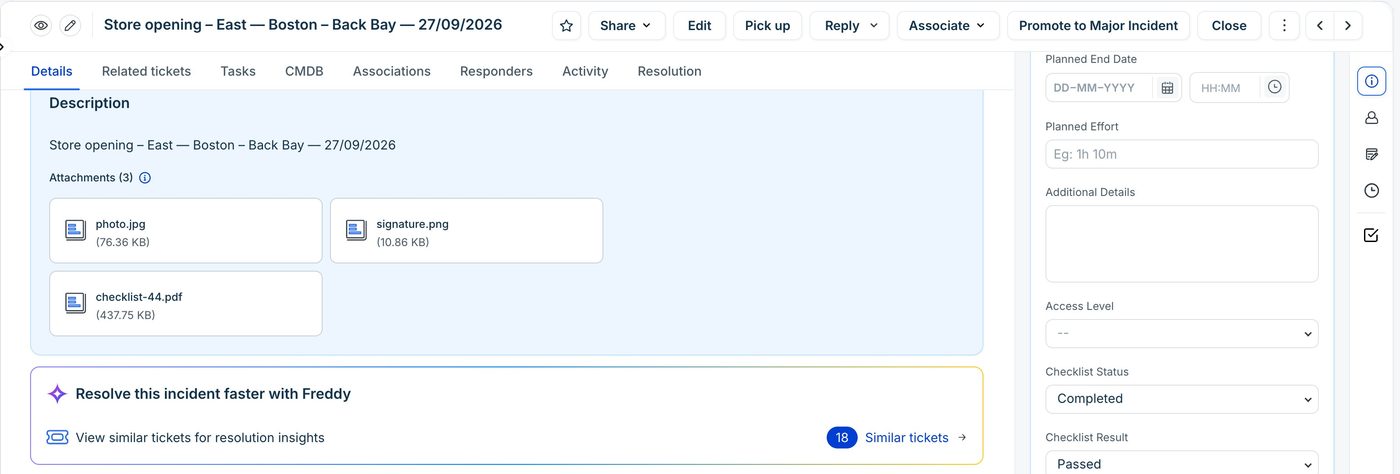
A private note with the score, the photos, the signature and a PDF. Five ticket fields and a set of tags are filled in, so your Freshservice automations, views and reports can act on the result.
Head office reads the dashboard
Pass rate and average grade by region and by store, the trend by day, and a filterable list of every checklist sent, with a CSV export.
Ninety seconds, from the builder to the report.
Build the checklist your stores already fill in on paper.
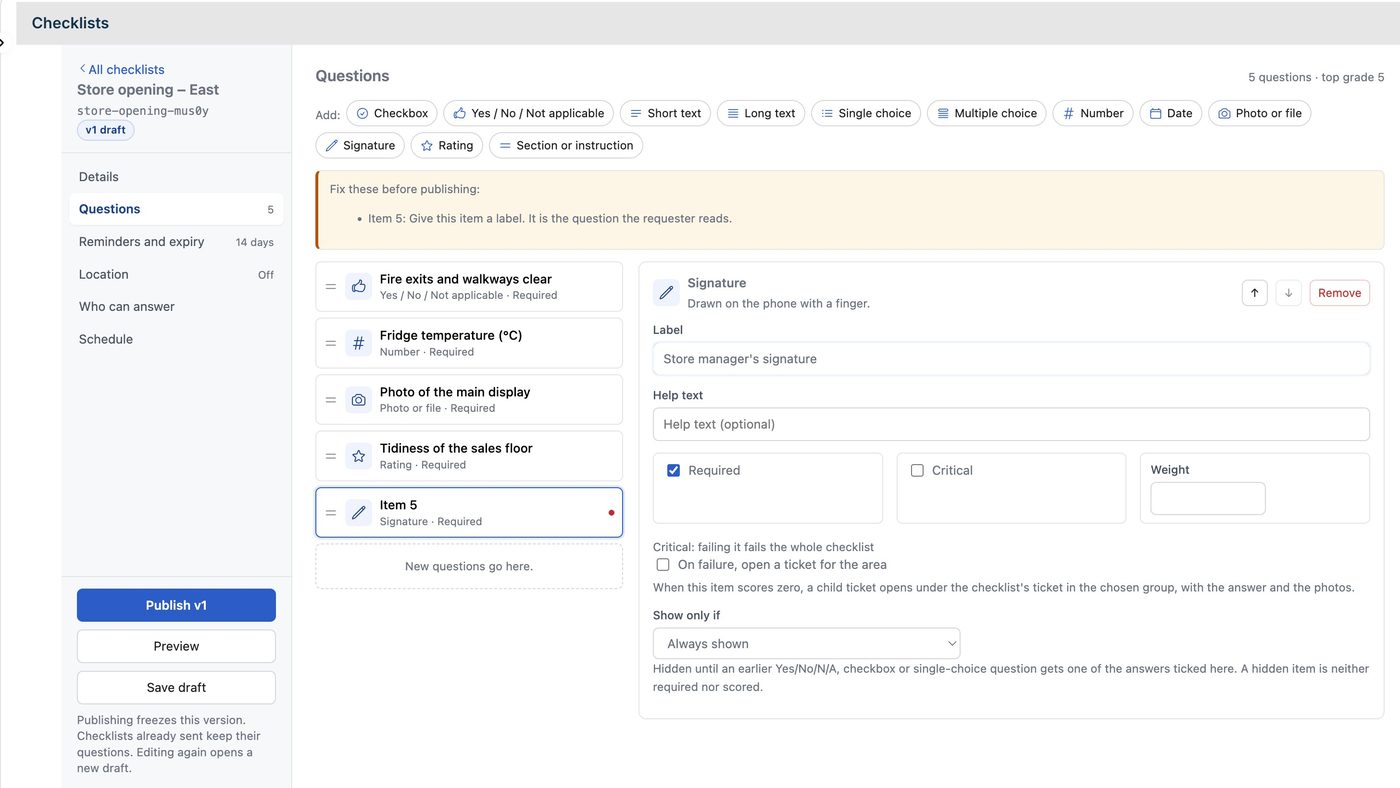
The builder lives in the full-page app. You add questions from twelve item types, drag them into order, and set for each one whether it is required, how much it weighs and what happens when it fails. Publishing freezes a version: checklists already sent keep the questions they were sent with, and editing again opens a new draft.
| Item type | What the requester does | How it scores |
|---|---|---|
| Checkbox | Ticks it or not. | Ticked earns the points. |
| Yes / No / Not applicable | Picks one of three. | Yes earns the points. Not applicable is left out of the score. |
| Single choice | Picks one option. | Each option carries its own points. |
| Multiple choice | Picks several options. | Points add up, to a cap you set. |
| Number | Types a reading, such as a fridge temperature. | Full marks inside the accepted range, zero outside it. Values that make no sense can be refused outright. |
| Rating | Picks a value on a scale, 1 to 5 by default. | In proportion to the value. |
| Photo or file | Takes a photo, or attaches a PDF if you allow it. | Earns the points when something is attached. |
| Signature | Signs with a finger. | Earns the points when signed. |
| Short text, Long text, Date | Types an answer or picks a date. | Not scored. |
| Section or instruction | Reads it. | No answer, no score. |
A grade out of 10, and the items that cannot fail.
Each answer earns its points times the item's weight. The grade is the percentage of the points available, out of 10. A checklist passes when it reaches the pass mark, 80% by default, and no critical item scored zero.
Mark an item critical and failing it fails the whole checklist, whatever the rest scored. A blocked fire exit is a fail even if the shelves are perfect.
When an item fails you can ask for evidence on the spot: the phone asks for a photo, a comment or both before the requester can move on. You can also open a ticket for the area: a child ticket under the checklist's ticket, in the group and at the priority you choose, with the answer and the photos attached. A broken fridge goes straight to maintenance.
Show only if keeps a checklist short. An item can wait for an earlier Yes / No / N/A, checkbox or single-choice answer, and a hidden item is neither required nor scored.
Answers count only from inside the store.
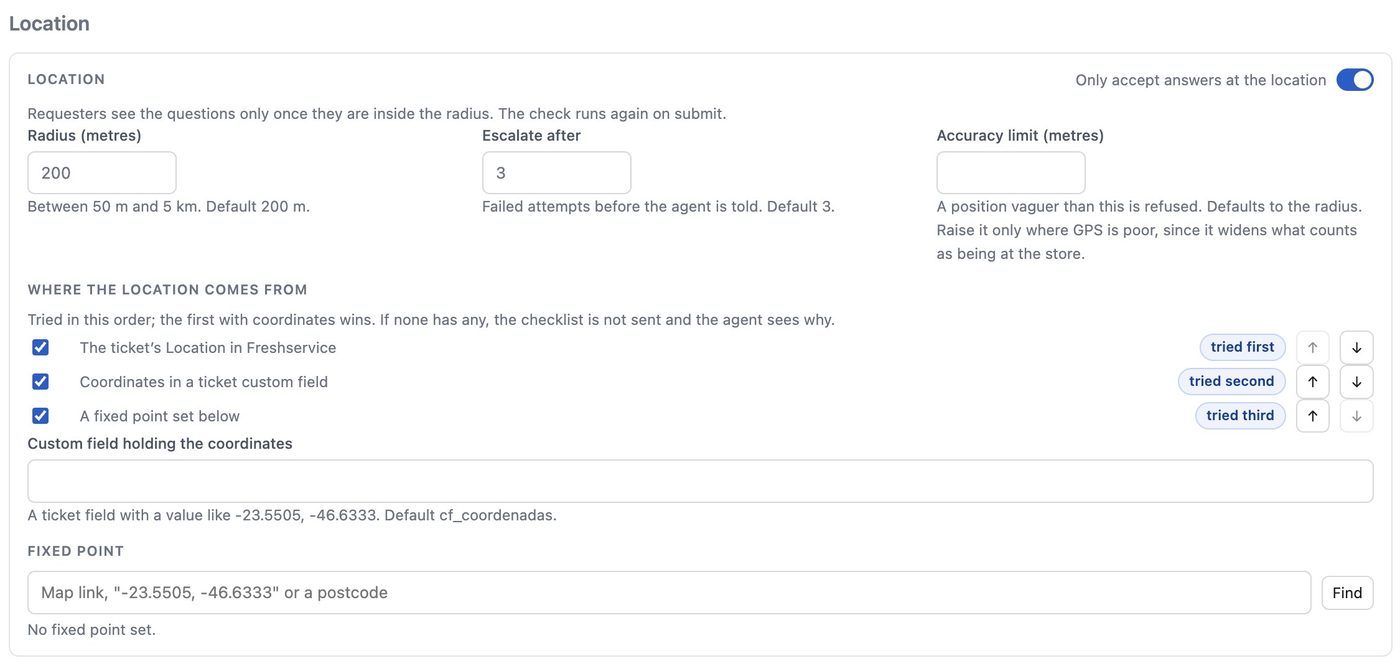
Turn on Only accept answers at the location and the requester sees the questions only once their phone is inside the radius, 200 metres by default and anywhere from 50 metres to 5 km. The position is checked again on submit. A reading too vague to trust is refused, and after three failed attempts, by default, the agent is told.
The store's position comes from the ticket's Location in Freshservice, from coordinates in a ticket field, or from a fixed point you paste as a map link or a postcode, tried in the order you choose. If none gives a position, the checklist is not sent and the ticket says why. With the geofence off, the position is still recorded on submit.
One ticket per store, every morning, without anyone sending it.
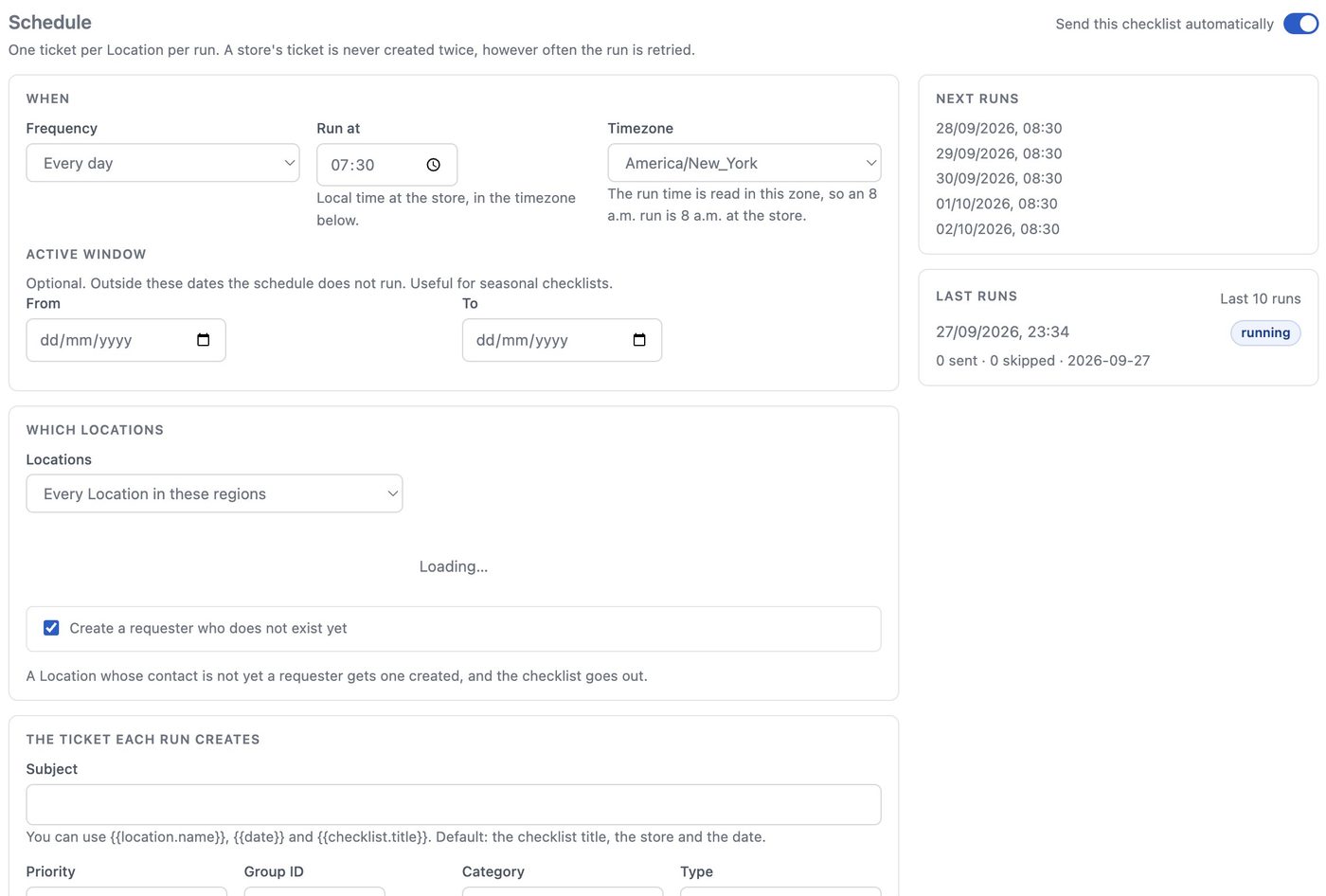
A schedule sends the checklist on its own: every day, on certain days of the week, or once a month, at a time that is read in the store's timezone, so an 8 a.m. run is 8 a.m. at every store. You choose the stores by listing them, by region (your Locations in Freshservice, nested), or by a piece of their name.
Each run creates one ticket per store with the subject, priority, group, category and type you set, and sends the link to the store's contact. A store never gets the same period's ticket twice, however often a run is retried. The card shows the next five runs and the last ten, with how many were sent or skipped and why.
A link, a phone, and no login.
The requester gets the link in an email from your helpdesk and opens it on any phone. The page carries your logo. They answer one question at a time, take photos with the camera, sign with a finger and press Submit. Answers are saved on the phone as they go, so a weak signal at the back of the store loses nothing. When they submit, they see the grade and whether it passed.
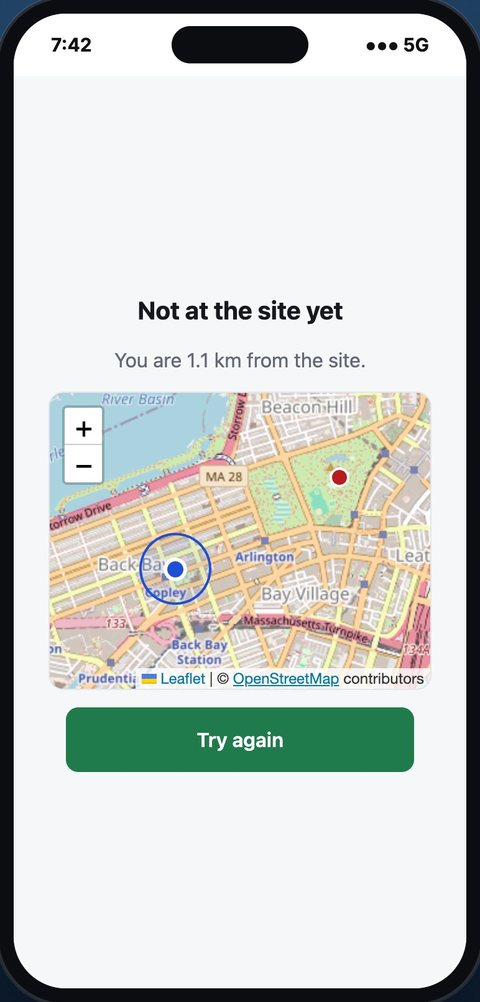
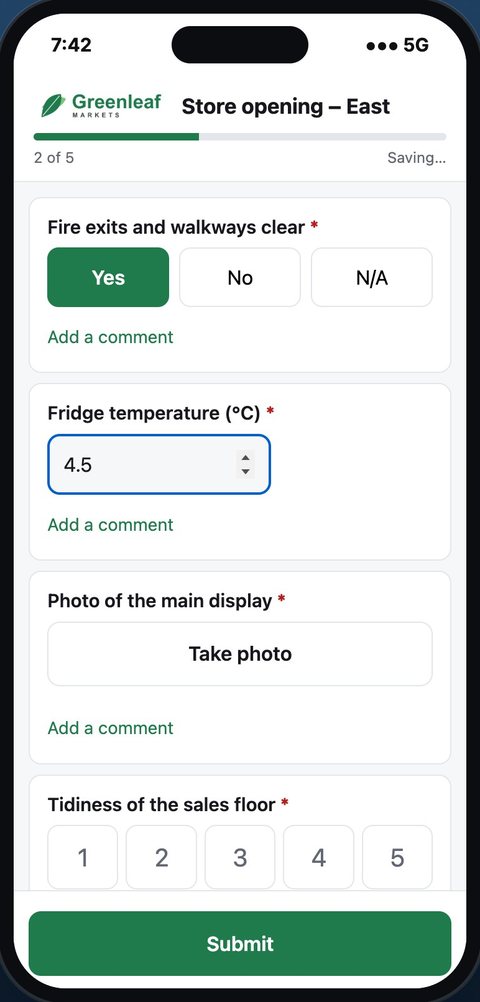
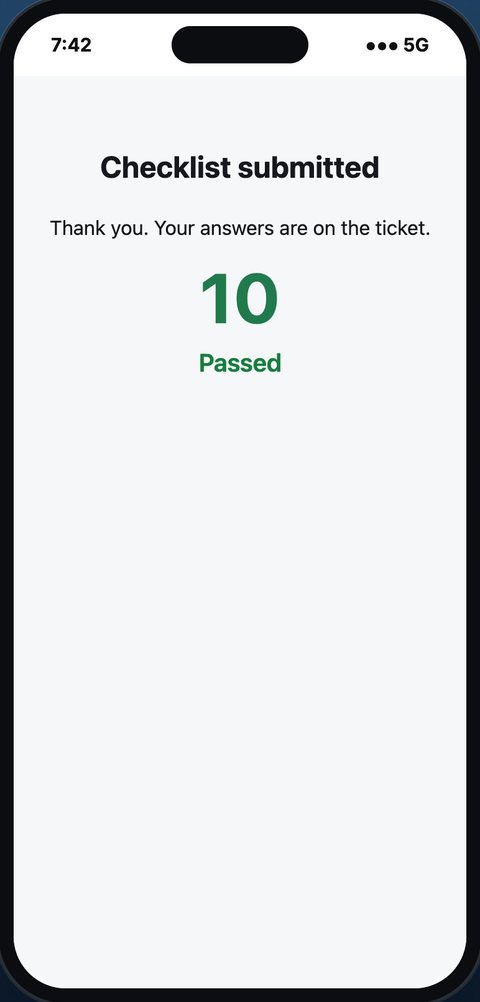
The result is written to the ticket, where Freshservice can act on it.
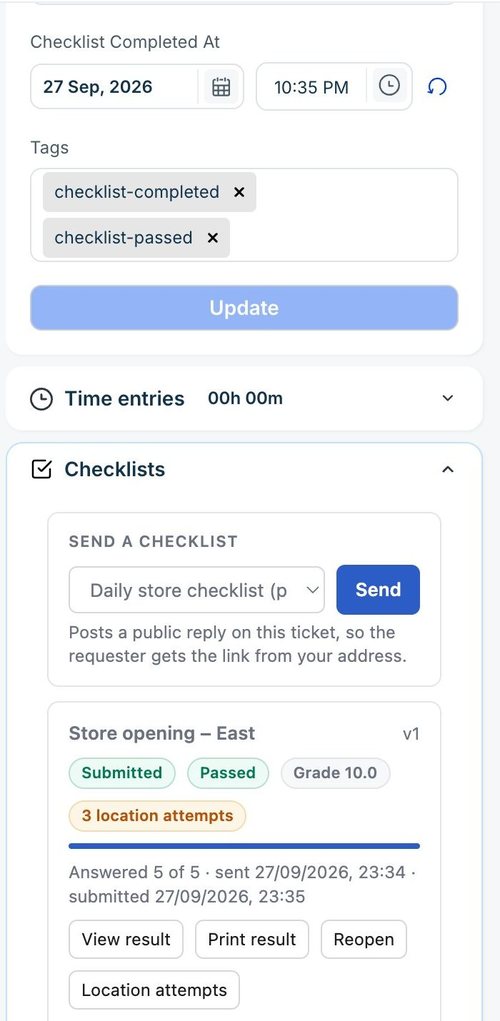
When the requester submits, the ticket gets a private note, five ticket fields and a set of tags. The fields and tags are what your Freshservice automations work from. A failed checklist can raise the priority, move the ticket to a group or notify a regional manager, using the workflow tools you already have.
Agents work from the Checklists panel in the ticket sidebar. They can send a checklist, see its status and grade, view or print the result, resend the same link, or reopen it with a fresh link that keeps the answers. Every location attempt is listed with its distance and accuracy.
A private note
The result, the score and the grade, the critical items that failed, when and where it was submitted, and the tickets opened for the areas. The photos, the signature and a PDF of the result are attached.
Five ticket fields
Checklist Status, Score, Result, Completed At and Template. You create them once in the Field Manager, and the app fills in the ones it finds.
Tags
checklist-completed, checklist-passed or checklist-failed, and others for expired and blocked checklists. Existing tags are never removed.
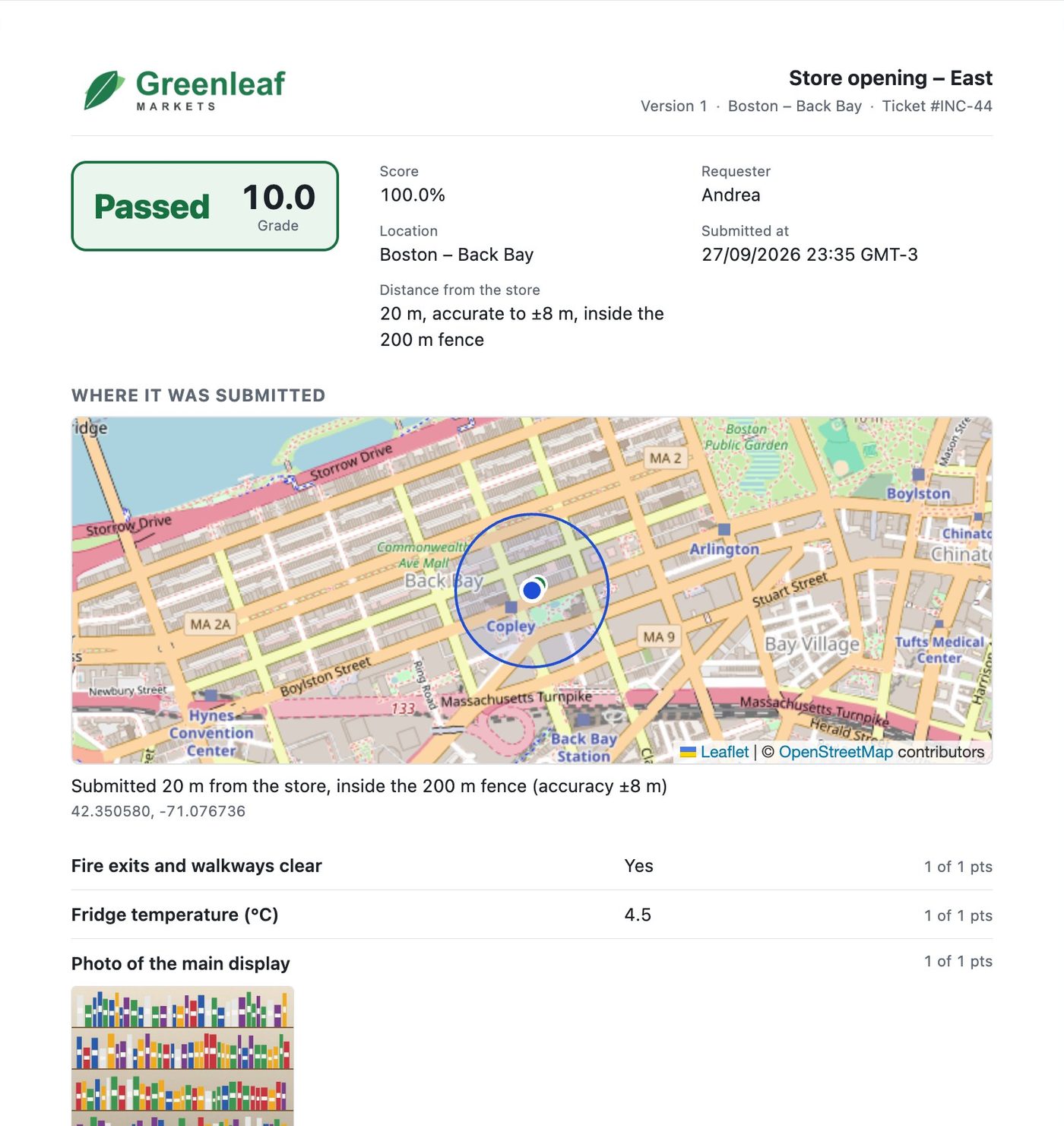
A printable report with your logo on it.
Print result opens a report built to be saved as a PDF or handed to an auditor. Your logo heads every page, along with the checklist, the version, the store and the ticket. Then come the result and the grade, a map of where it was submitted and how far from the store, every answer with its points, the photos and the signature. A copy of the same PDF is attached to the ticket when the checklist is submitted.
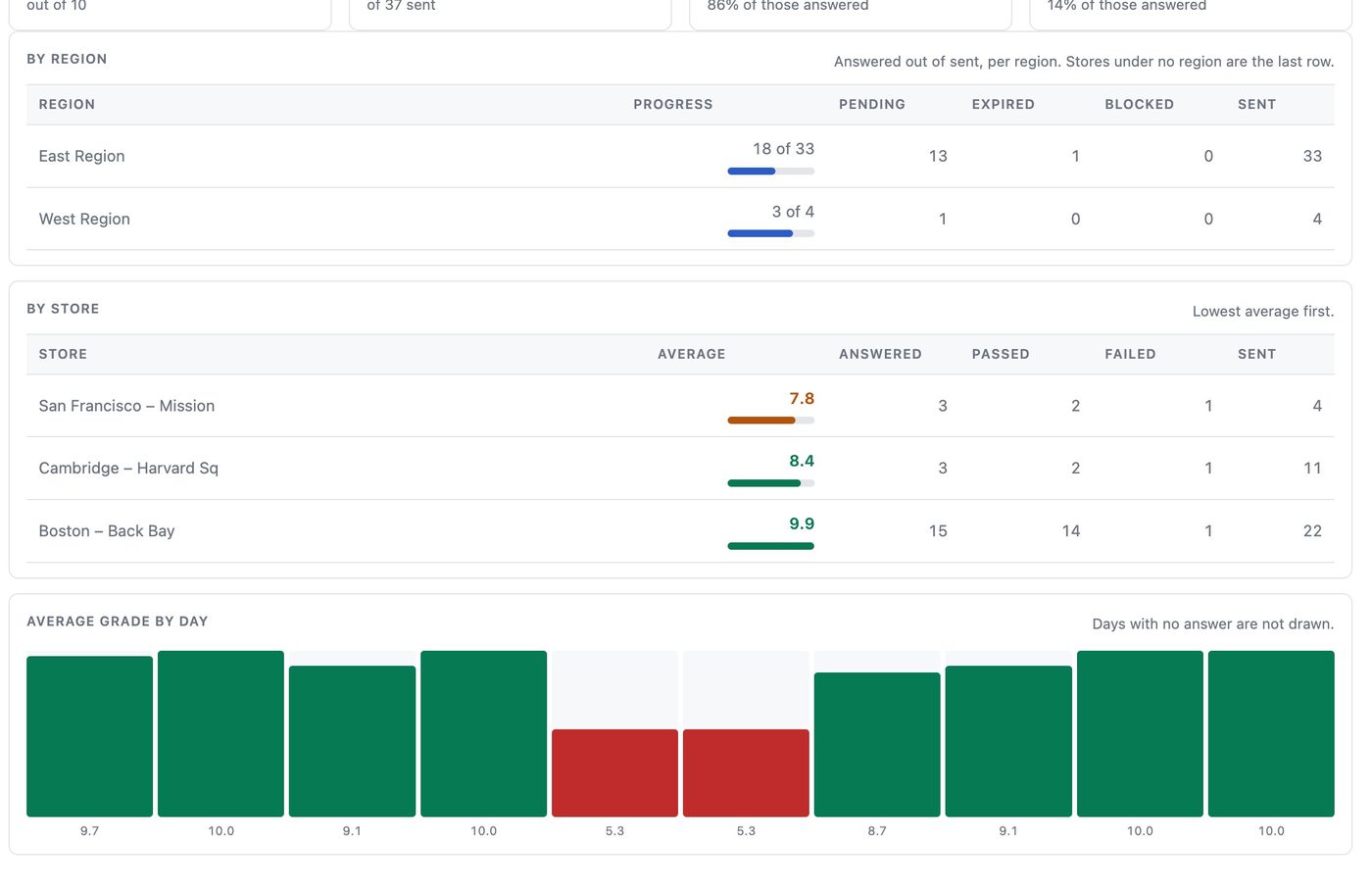
Which stores pass, and which keep failing.
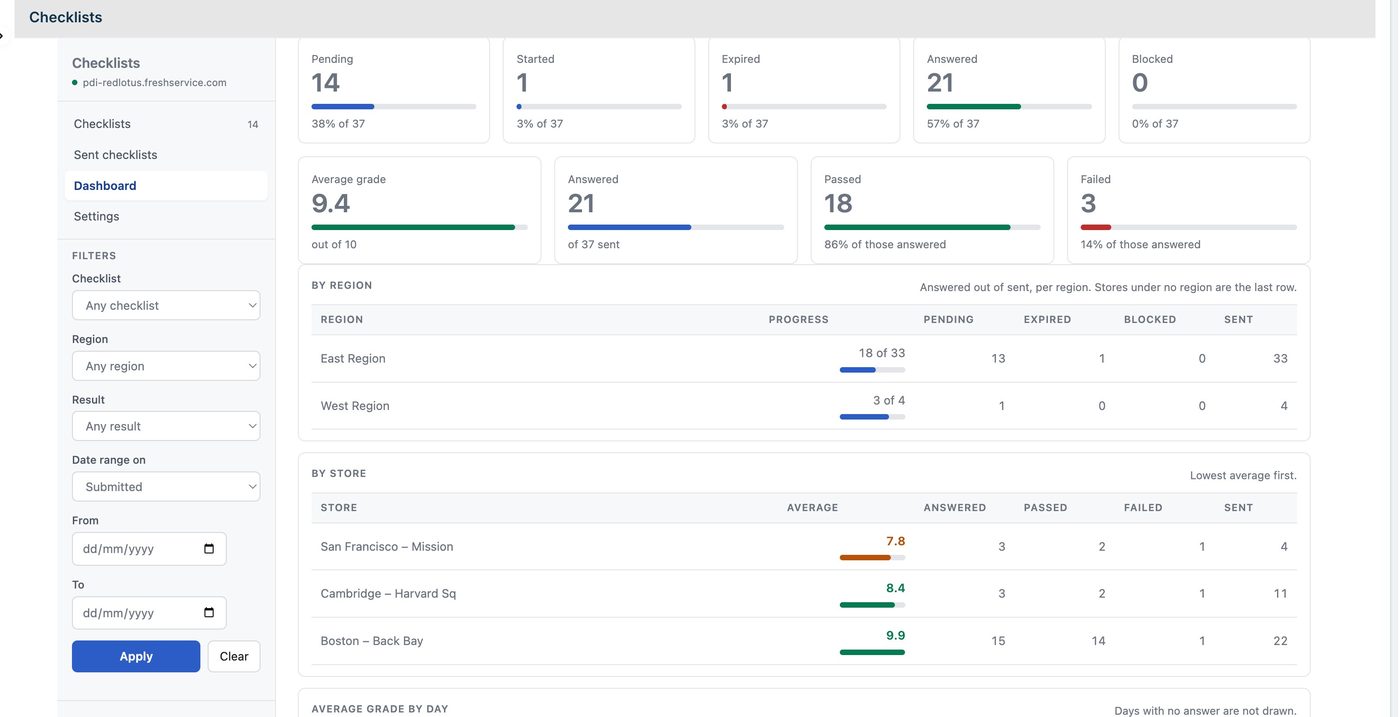
The Dashboard tab counts what is pending, started, answered, expired and blocked. It shows the average grade, how many passed and failed, a table by region, a table by store with the lowest average first, and the average grade day by day. Filter by checklist, region, result and dates. It refreshes every minute.
Sent checklists lists every checklist ever sent, with its ticket, requester, store, status, result and grade. Filter it by checklist, region, status, result, grade, requester, ticket number or dates. Export exactly what you filtered as CSV, and resend, reopen or open the result from any row.
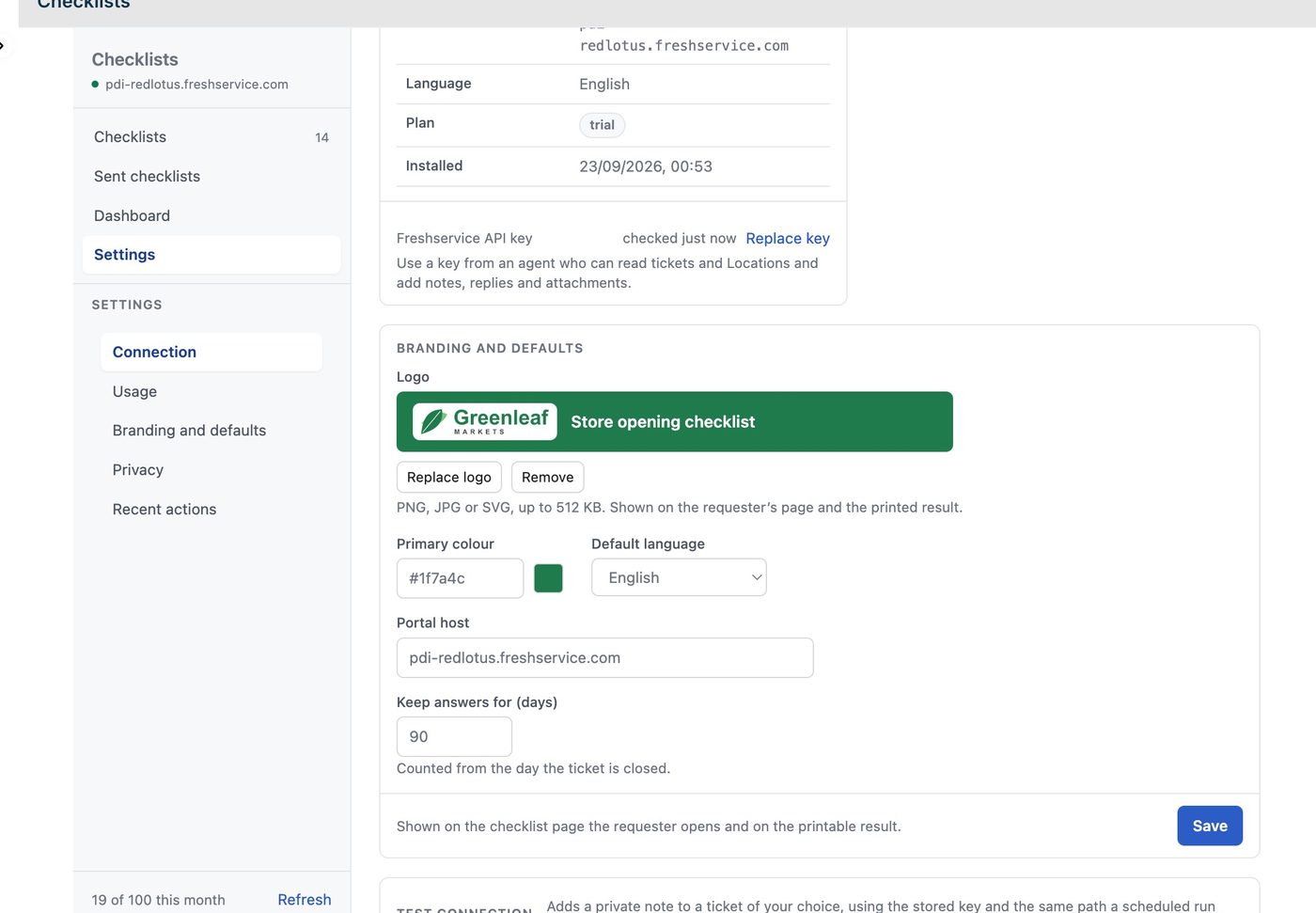
One settings page.
Connection shows your Freshservice domain and whether the API key works, lets you replace the key, and can post a test note to a ticket. Usage counts the checklists submitted this month. Branding and defaults sets the logo and colour the requester sees, the default language, and how long answers are kept. Privacy erases a requester's data on request, and Recent actions logs what admins changed.
What is stored, where, and for how long.
The app runs on a small service of ours, hosted on Microsoft Azure in the United States (westus2). It keeps the answers, scores, photos and signatures, and the position each checklist was answered from. Tickets, notes, attachments and emails stay in your Freshservice account. Freshservice sends the emails, from your address.
The Freshservice API key is encrypted (AES-256-GCM) and never shown again, only replaced. Requester links are private, expire, and stop working when a checklist is reopened. Photos and signatures sit in private storage. Answers are kept for 90 days after the ticket closes by default, and you can set anything from 7 days to 10 years. An admin can erase a single requester's data at any time.
USD 499 per Freshservice account, per month.
One flat price for the account, whatever the number of stores or agents. Requesters answer for free and need no licence. It starts with a free trial, and Freshworks bills it through your Freshworks account; the trial's length is the one on the Marketplace listing. Checklists needs Freshservice on the Growth plan or above.
Available on the Freshworks Marketplace.
Common questions.
Do the people at the stores need a Freshservice licence?
No. They are requesters. They get a link in an email and answer in the phone's browser, with no app to install and no login.
Is it only for retail?
It is built around Locations, so anything that happens at a place fits: stores, branches, warehouses, clinics, restaurants, sites. The demo uses store openings because that is where the problem is easiest to see.
What if the phone has no signal?
Answers are saved on the phone as they are given, and sent when the requester submits. Losing the signal halfway through loses nothing.
What does the app need from Freshservice?
An API key from an agent with an admin role, who can read and update tickets, add notes and attachments, and read Locations, departments and groups. You also create five optional ticket fields. The guide lists them all.
Which languages does it speak?
English and Brazilian Portuguese, for the admin screens, the requester's page, the notes on the ticket and the report.
What happens when we uninstall it?
Nothing is deleted from Freshservice: the tickets, notes, attachments, fields and tags stay where they are. The data the service holds is purged by the retention period you set.
Who do I ask for help?
Write to info@redlotus.com.br. We wrote the app, and we are an authorized Freshworks partner, so the Freshservice side is our day job too.
See every store, every morning.
We set it up with you, build your first checklist and show your team how it works. Questions go to info@redlotus.com.br.
Back to all solutions