User guide
Contents
- 1. How it fits together
- 2. Install: the API key and the five ticket fields
- 3. Settings
- 4. Build a checklist
- 5. Item types
- 6. Points, critical items and failures
- 7. Location and geofence
- 8. Reminders, expiry and who can answer
- 9. Preview and publish
- 10. Send from the ticket sidebar
- 11. Send on a schedule
- 12. On the requester's phone
- 13. The result on the ticket
- 14. The printable report
- 15. Dashboard and sent checklists
- 16. Resend, reopen and expiry
- 17. Archive and delete
- 18. Troubleshooting
- 19. Questions
1. How it fits together
Checklists has three places in Freshservice and one outside it.
- The full-page app, opened from the Checklists icon in the left navigation bar. Its tabs are Checklists (build and publish), Sent checklists, Dashboard and Settings.
- The Checklists panel in the ticket sidebar, where agents send a checklist and see its result.
- The ticket itself, which receives the invitation as a public reply and the result as a private note, fields and tags.
- The requester's page, a private link opened on a phone, with no login.
Behind it is a service run by Red Lotus on Microsoft Azure that stores the checklists, the answers, the photos and signatures. See the privacy policy for what is stored and for how long.
2. Install: the API key and the five ticket fields
Before you install, get an API key. The app acts in Freshservice with one agent's API key (Profile settings, Your API key, or the key of an integration user). That agent must be able to:
- read and update tickets, and post notes and attachments, in the workspace where checklists will be sent;
- read Locations, departments and groups;
- open Admin › Field Manager. Without an admin role that can see the ticket fields, Freshservice answers 403 when the app reads them, and the checklist fields stay empty.
An "Account Admin" role on its own is not enough. The user also needs an agent role in the workspace, or tickets answer 403.
On the installation page:
Paste the key and press Connect
The page checks the key against your helpdesk. If it is refused, the page says so and nothing is installed. The key is stored encrypted (AES-256-GCM) and never shown again. You can replace it later on Settings.
Check the five fields
Once connected, the page lists which of the five optional ticket fields your helpdesk already has. A missing field is simply skipped, so you can add them after installing.
Pick the language
English or Português (Brasil). It sets the language of the requester's page, of the notes on tickets, of the field values and of the tags.
Leave the sample ticked and install
Install the sample template creates a published "Daily store opening" checklist, so there is something to send on day one. Its schedule is created switched off. Portal host is optional and only matters if you embed checklists in your support portal.
The five ticket fields. Create them under Admin › Field Manager › Ticket Fields with these exact labels. The app does not create them. It fills in the ones it finds.
| Label | Type | Values the app writes |
|---|---|---|
| Checklist Status | Dropdown | Pending, In progress, Completed, Expired, Blocked |
| Checklist Score | Number (decimal) | The grade, 0 to 10 |
| Checklist Result | Dropdown | Passed, Failed |
| Checklist Completed At | Date and time | When it was submitted |
| Checklist Template | Single-line text | The checklist's code |
Add the dropdown choices exactly as listed. In Brazilian Portuguese the labels are Checklist Status (Pendente, Em andamento, Concluído, Expirado, Bloqueado), Checklist Nota, Checklist Resultado (Aprovado, Reprovado), Checklist Concluído em and Checklist Template.
Then open the app from the left navigation bar. It opens on Settings, which confirms the account the key can see.
3. Settings
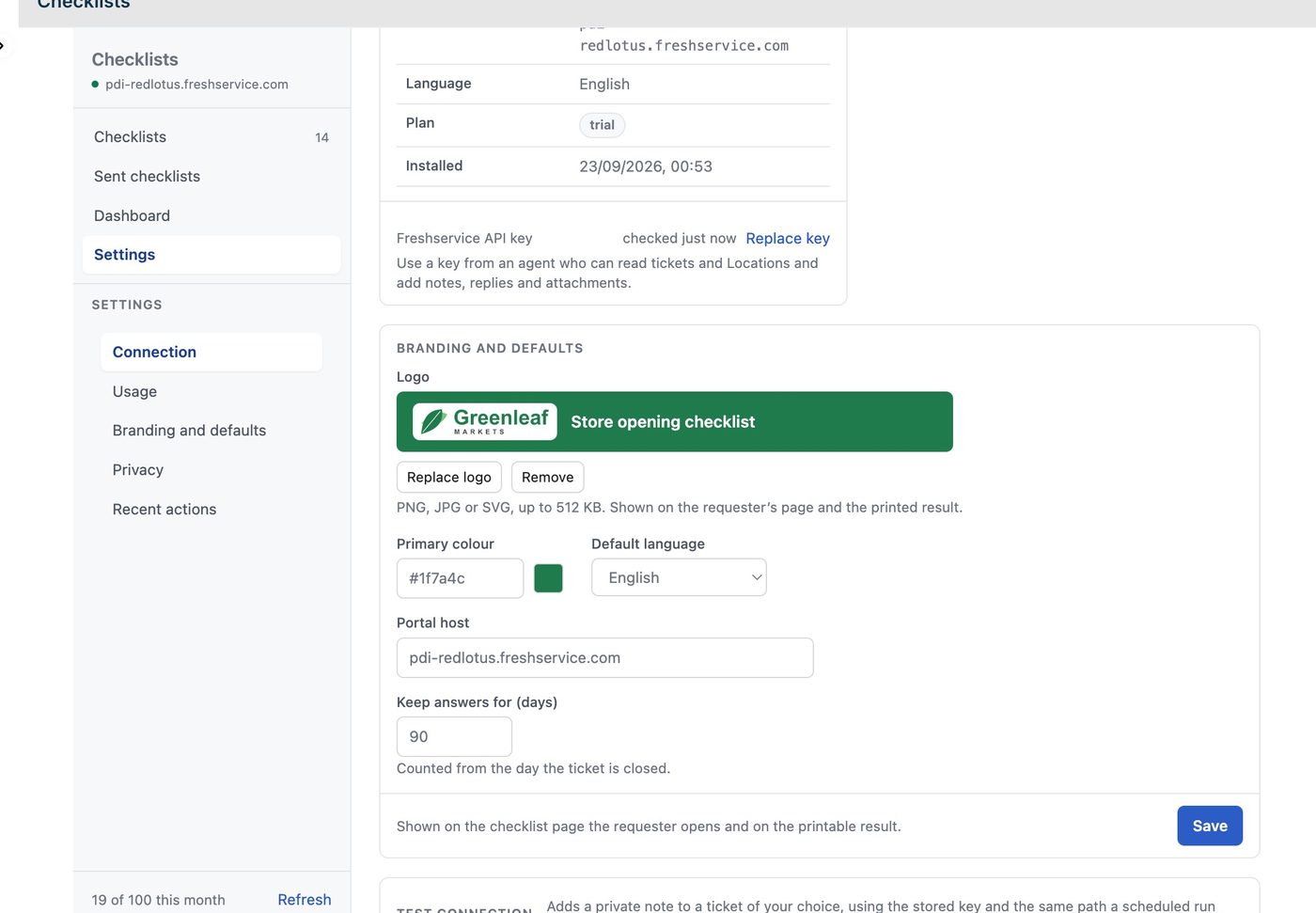
- Connection. Your Freshservice domain, whether the API key still works, and the plan. Replace key takes a new key and checks it before saving. Test connection posts a private note to a ticket number you choose, using the stored key, which is the quickest proof that everything works end to end.
- Usage. Checklists submitted this month, and the plan. Sending is free; a checklist counts once it is submitted.
- Branding and defaults. Your logo (PNG, JPG or SVG, up to 512 KB), previewed on your primary colour. Both appear on the requester's page and on the printed report. Also the portal host, the default language, and Keep answers for (days): 7 to 3650, 90 by default, counted from the day the ticket is closed.
- Privacy. Erase a requester's data removes everything personal from every checklist a given email address submitted. It asks twice. Photos already attached to a ticket are the ticket's own copy and stay there.
- Recent actions. A log of what admins changed.
Changing the language changes the field values and tags the app writes from then on. Add the new language's choices to the two dropdowns, and update any automation that matches the old tags or values. Existing tags are never removed.
4. Build a checklist
On the Checklists tab, press New checklist, give it a title and a code, and press Create draft. The list shows every checklist with its code, state (draft, published or archived) and version.
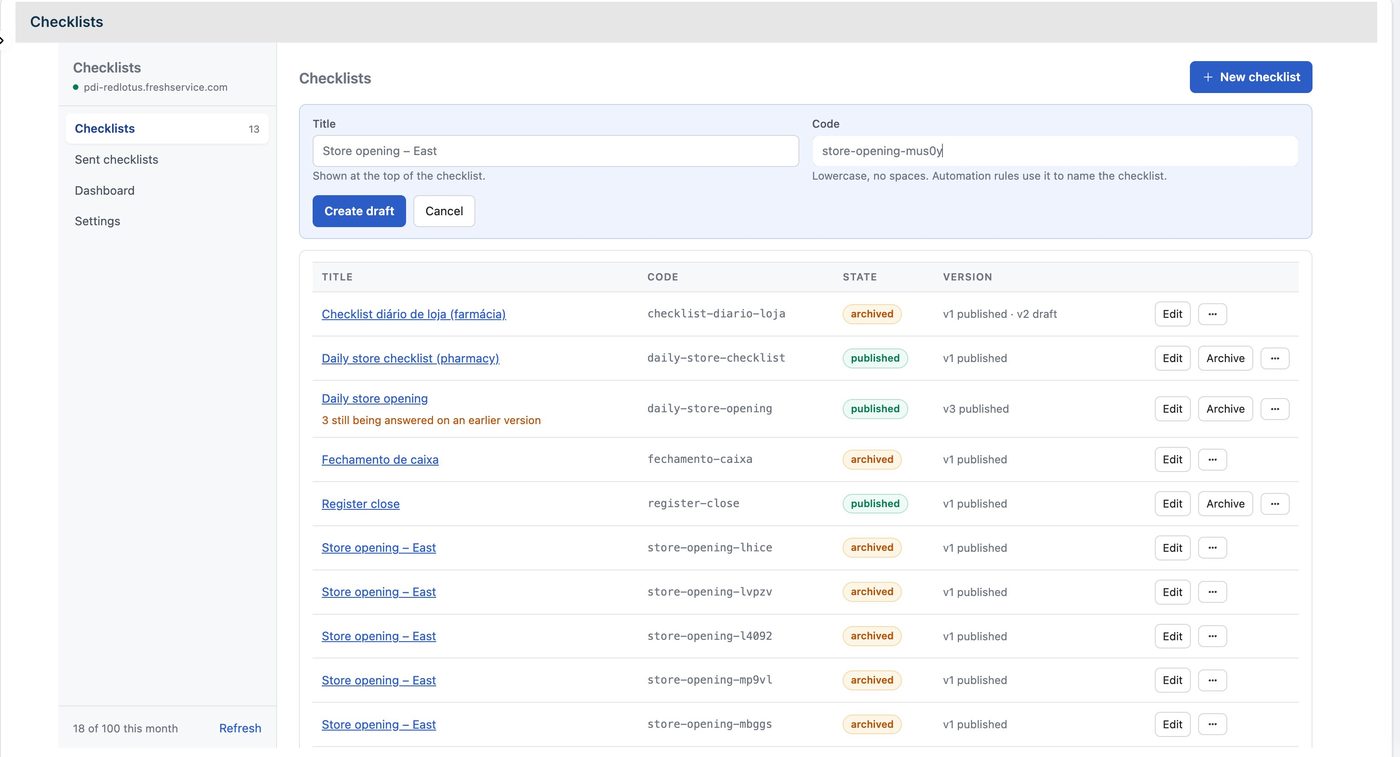
The builder has six sections down the left:
- Details. The code is lowercase, without spaces, and cannot be changed later: automations use it to name the checklist, and it is what the Checklist Template field receives. The title is what the requester sees. The description is up to 200 characters.
- Questions. The items, in order. See item types and points and failures.
- Reminders and expiry, Location, Who can answer and Schedule, each covered below.
Add a question with the item type buttons at the top of Questions. Reorder by dragging the handle, or with the arrows on the selected item. A list of problems to fix appears above the questions until the draft can be published.
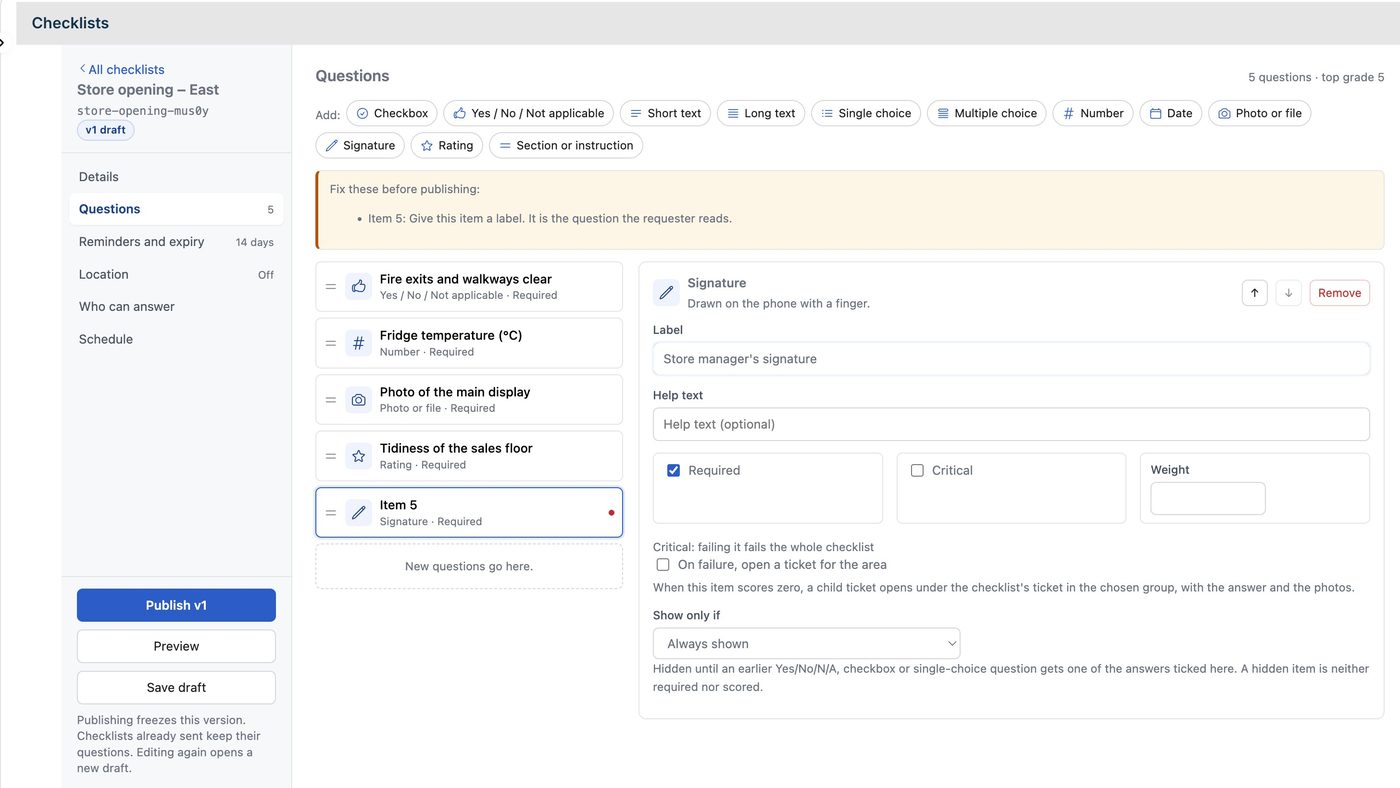
Every item has a label (the question the requester reads), optional help text, Required, Critical and Weight. The rest depends on the type.
5. Item types
| Type | Options | Score |
|---|---|---|
| Checkbox | Ticked or not. | Ticked earns full points. |
| Yes / No / Not applicable | Three buttons. | Yes earns full points, No earns zero. Not applicable is left out of the score. |
| Short text | One line, up to 200 characters. | Not scored. |
| Long text | Up to 4000 characters. | Not scored. |
| Single choice | A list of options, each with its own points. | The chosen option's points. |
| Multiple choice | Options with points, a Points cap and Most options selectable. | The points of the chosen options add up, to the cap. |
| Number | Accepted from / to is the passing range. Refuse below / above limits what the phone accepts at all. | Full points inside the accepted range, zero outside. |
| Date | A date picker. | Not scored. |
| Photo or file | Camera photos. Allow attaching a file also accepts PDF. Most files is 5 by default. JPG, PNG and PDF only. | Full points when something is attached. |
| Signature | Drawn with a finger. | Full points when signed. |
| Rating | Scale from / to, 1 to 5 by default. | In proportion to the value chosen. |
| Section or instruction | A heading or a paragraph of instructions. | No answer, no score. |
6. Points, critical items and failures
Points and weight. Each scored item earns its points times its Weight (1 by default). The score is the percentage of the points available, and the grade is that percentage divided by 10, so 86% is 8.6. Not applicable answers and hidden items are left out of both sides of the sum.
Pass or fail. A checklist passes when its score reaches the pass mark, 80% by default, and no critical item scored zero.
Critical. Tick Critical on an item and failing it fails the whole checklist, whatever the score. Use it for what is not negotiable: fire exits, cold chain, the alarm.
Evidence on failure. On failure, require Photo, Comment or both. When the item scores zero, the phone asks for the evidence before the requester can submit.
A ticket for the area. On failure, open a ticket for the area creates a child ticket under the checklist's ticket when the item scores zero. You set the Group, the Priority and the Subject. By default the subject is the item's label and the store, prefixed with [Checklist]. The child ticket carries the answer and the photos, and is tagged checklist-non-conformity. The result note lists the tickets it opened.
Show only if. An item can stay hidden until an earlier item gets one of the answers you tick. Only an earlier Yes / No / Not applicable, checkbox or single-choice item can be the condition. A hidden item is neither required nor scored.
7. Location and geofence
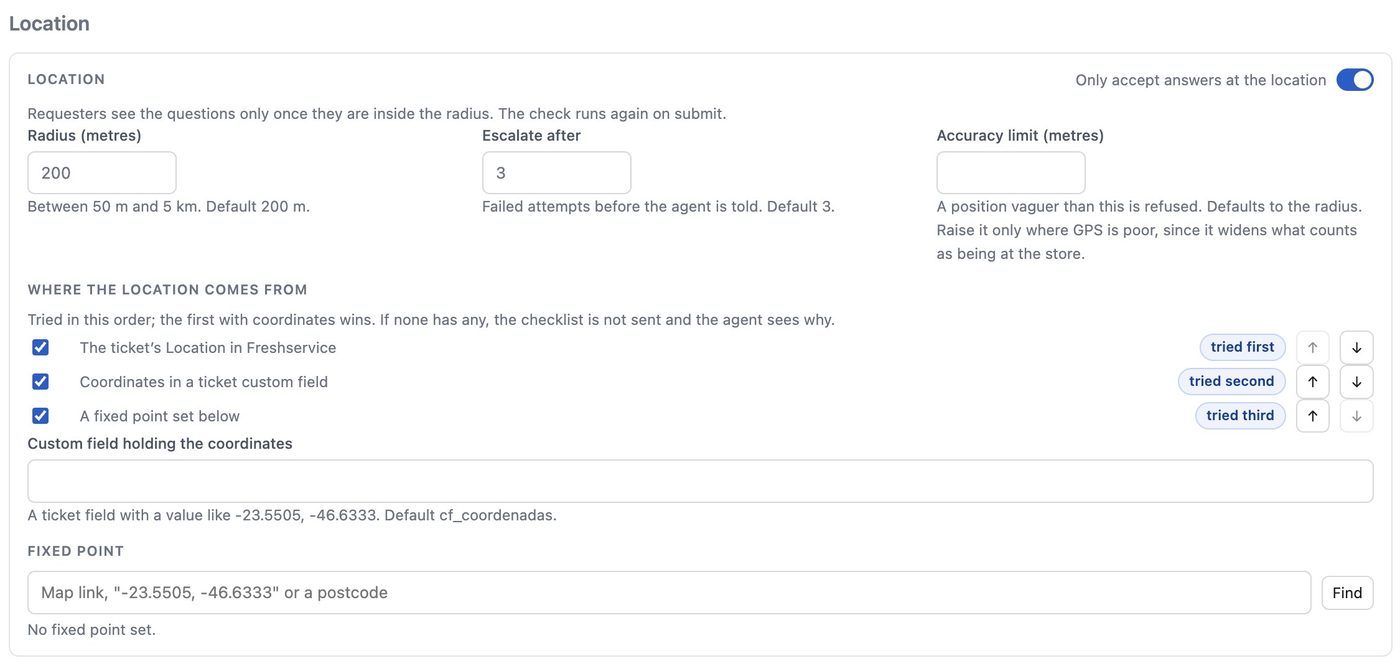
Only accept answers at the location turns the geofence on. The requester sees the questions only when the phone is inside the radius, and the position is checked again when they submit.
- Radius (metres). 50 m to 5 km, 200 m by default.
- Accuracy limit (metres). A position vaguer than this is refused. It defaults to the radius. Raise it only where GPS is poor, since it widens what counts as being at the store.
- Escalate after. Failed attempts before the agent is told, 3 by default. The ticket gets a private note and the
checklist-blockedtag.
Where the location comes from is tried in the order you set, and the first source with coordinates wins:
- The ticket's Location in Freshservice. The Location needs an address with a postcode, or coordinates.
- Coordinates in a ticket custom field, with a value like
-23.5505, -46.6333. The field's name defaults tocf_coordenadas. - A fixed point, for a checklist that always happens at the same place. Paste a map link,
lat, lngor a postcode, then check it on the map.
If no source gives coordinates, the checklist is not sent. Its status is No location, the ticket gets a note and the blocked tag, and the agent can fix the Location and send again. With the geofence off, the position is still recorded when the requester submits.
8. Reminders, expiry and who can answer
- Chase an unanswered checklist. Send a reminder 1, 3 or 7 days after the checklist was sent, at most two. Each reminder is a public reply on the ticket, emailed by Freshservice from your support address. Reminders due after expiry are not sent.
- Expires after (days). 1 to 90, 14 by default. After that the link stops accepting answers, the ticket gets a private note and the
checklist-expiredtag, and Checklist Status becomes Expired. - Who can answer. Off, whoever the ticket names as requester can answer. With Only certain roles on, the requester's Job title, Department or Location must be on your list. You can also allow the managers of the Locations above the store. This is checked against their Freshservice contact record when the checklist is sent.
9. Preview and publish
- Save draft keeps your changes without publishing.
- Preview opens the draft as a requester sees it, on a phone-sized page. Nothing you fill in is saved, and the link expires after 15 minutes.
- Publish vN freezes the version. Only published checklists can be sent. Checklists already sent keep the questions they were sent with. Editing again opens a new draft, and the left column says how many are still being answered on the older version.
10. Send from the ticket sidebar
Open a ticket whose requester has an email address. In the right-hand sidebar, open Checklists, pick a checklist under Send a checklist and press Send.
The app posts a public reply on the ticket with a private link, so the email reaches the requester from your own helpdesk address. The ticket is tagged checklist-sent and Checklist Status becomes Pending.
From then on the panel shows each checklist on the ticket: its status, Answered x of y, the grade, when it was sent and submitted, and the location attempts.
11. Send on a schedule
In the builder's Schedule section, switch on Send this checklist automatically. Each run creates one ticket per Location and sends the checklist with it.
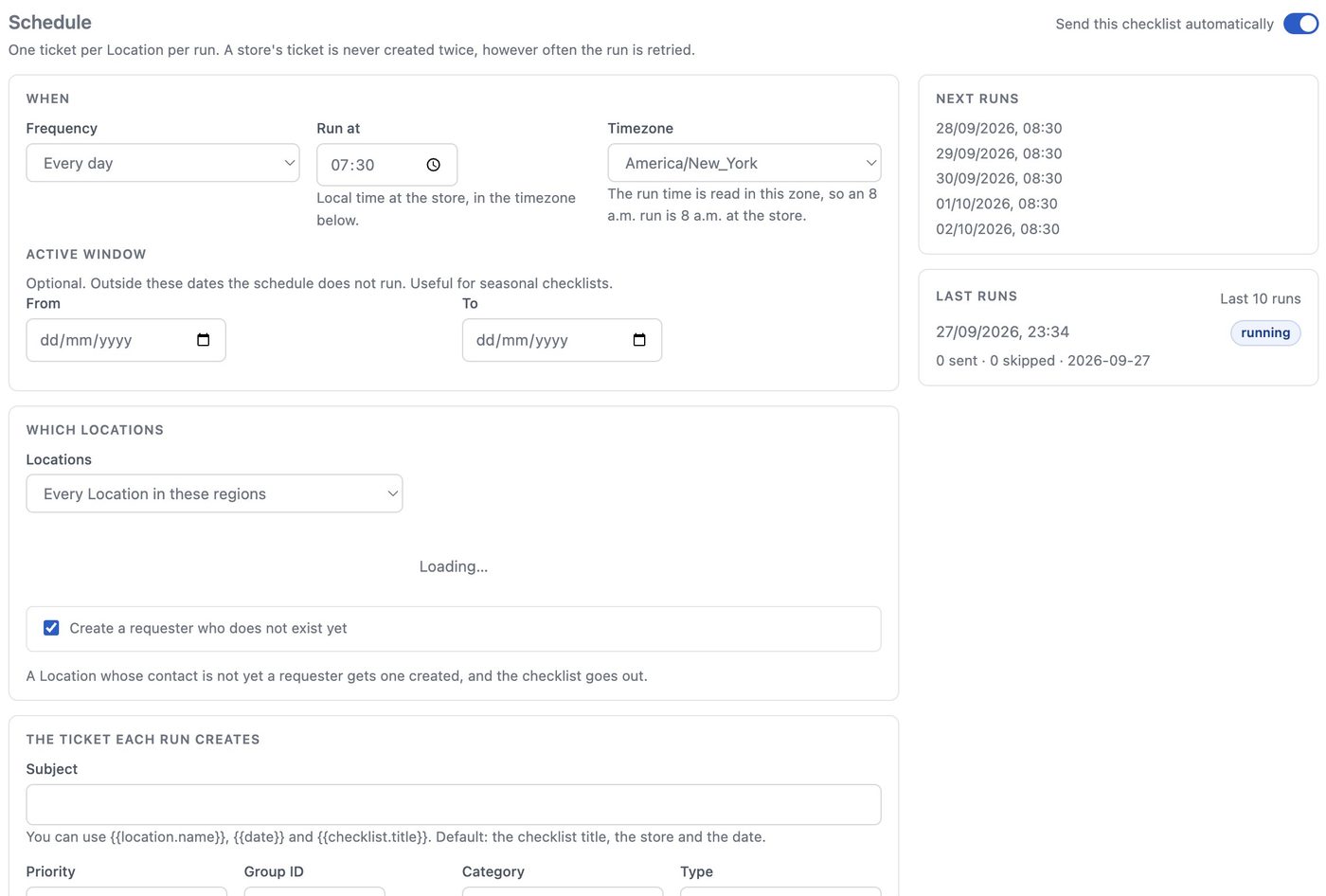
- Frequency. Every day, certain days of the week, or once a month.
- Run at and Timezone. The time is local time at the store, read in the timezone you pick.
- Active window. Optional From and To dates. Outside them the schedule does not run. Useful for seasonal checklists.
- Which Locations. Every Location; every Location in certain regions (Locations nested under a parent Location); Locations whose name contains a piece of text; or only the Locations you pick.
- Create a requester who does not exist yet. Off by default. The checklist goes to each Location's contact in Freshservice. With this on, a contact who is not yet a requester gets one created.
- The ticket each run creates. Subject (you can use
{{location.name}},{{date}}and{{checklist.title}}), Priority, Group ID, Category and Type. Expires after (days), 1 to 365, overrides the checklist's own expiry for scheduled sends.
Scheduled tickets are tagged checklist-scheduled. A Location never gets two tickets for the same period, however often a run is retried. Next runs lists the next five. Last 10 runs shows how many were sent or skipped, with the reason for each skipped store, including runs that were missed.
12. On the requester's phone
The requester opens the link from the email on any phone. There is no app and no login. The page carries your logo and colour.
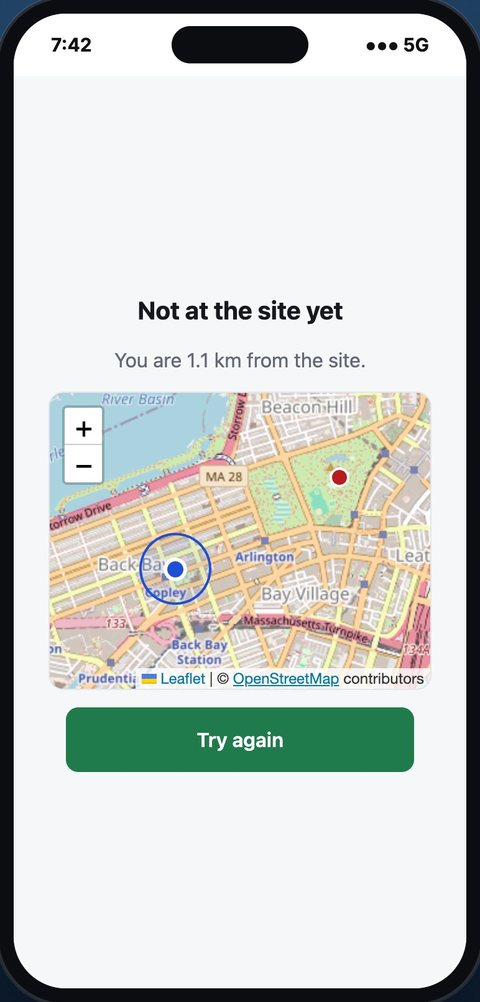
- Location first. If the checklist is fenced, the page says Checking your location…, and asks the browser for permission. Outside the radius it shows how far away the phone is, on a map, with Try again. If permission is denied, or the position is not accurate enough, the page says which, and how to fix it.
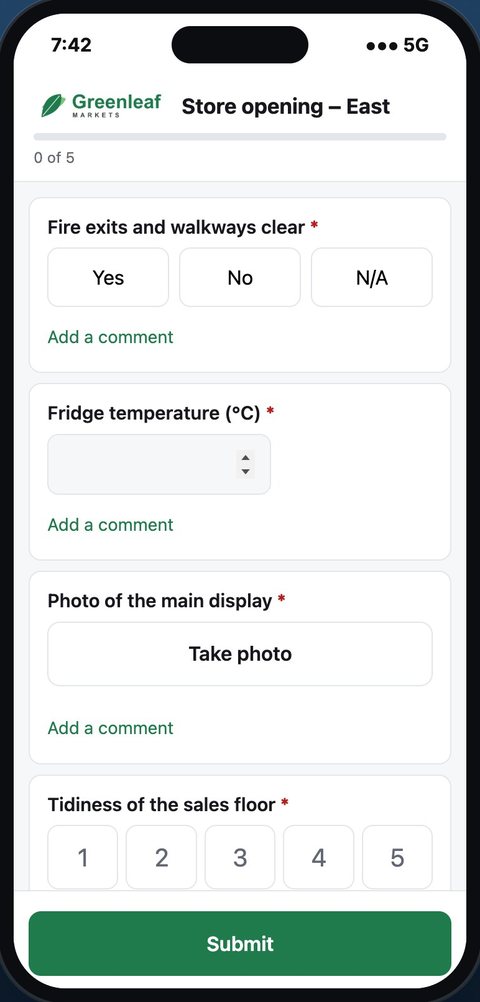
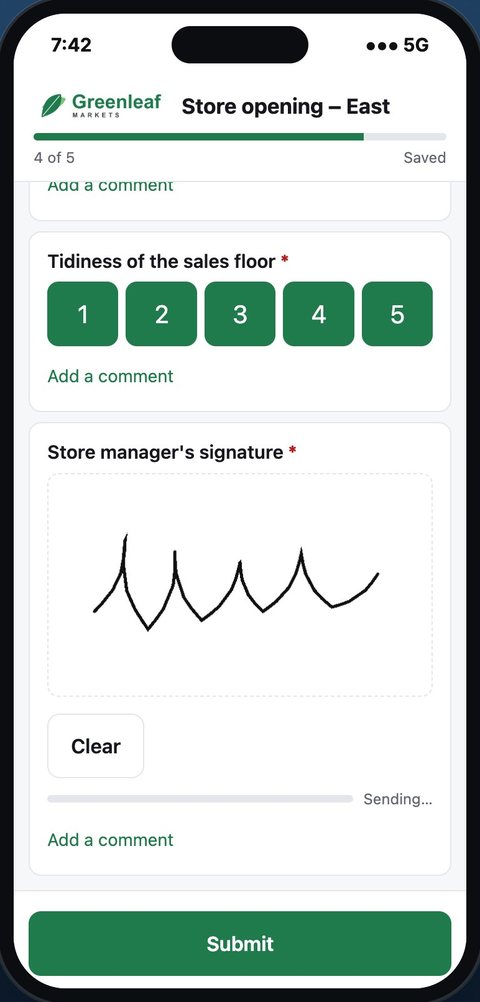
- Answering. Take photo opens the camera, Attach file appears where you allowed files, and Add a comment is on every item. When an answer fails and evidence is required, the page says so: This answer failed. Add a photo or a comment.
- Saved as they go. Answers are kept on the phone, so closing the page or losing signal loses nothing.
- Submit. Required items must be answered first. The page then shows Checklist submitted, with the grade and Passed or Failed.
13. The result on the ticket
When the requester submits, the app writes to the ticket:
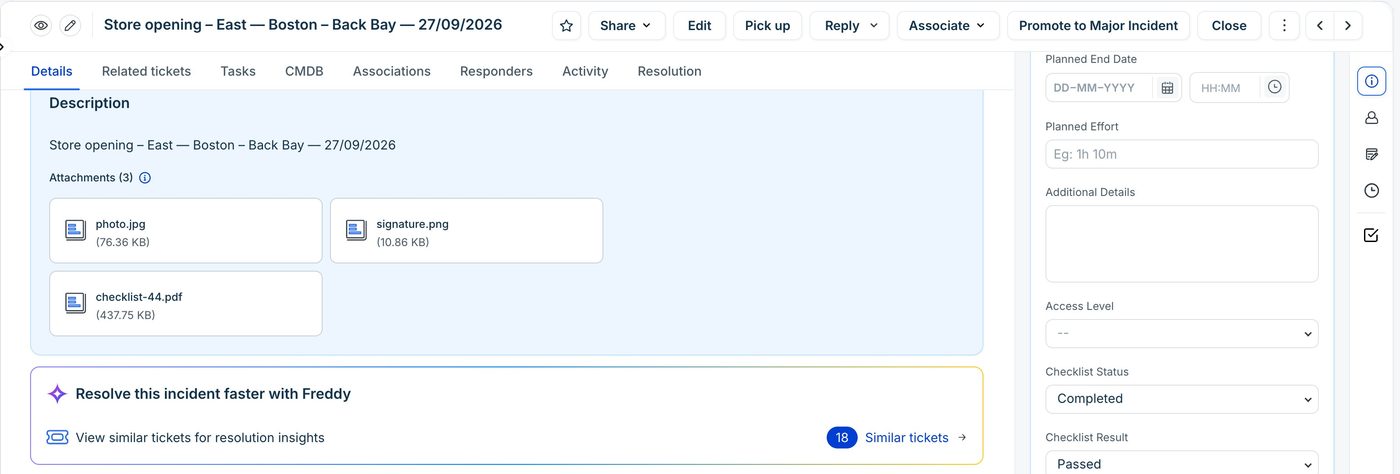
- A private note, Checklist result: title (vN), with the result, score and grade, the critical items that failed, when it was submitted, the location at submit with an Open in map link, the device, the requester's comments and the tickets opened for the areas.
- Attachments: the photos, the signature and a PDF of the full result.
- The fields: Checklist Status Completed, Checklist Score, Checklist Result Passed or Failed, Checklist Completed At, and Checklist Template.
- Tags:
checklist-completed, pluschecklist-passedorchecklist-failed.
| Tag (English) | Tag (Portuguese) | When |
|---|---|---|
checklist-sent | checklist-enviado | A checklist was sent on the ticket. |
checklist-scheduled | checklist-agendado | The ticket was created by a schedule. |
checklist-completed | checklist-concluido | The requester submitted. |
checklist-passed | checklist-aprovado | It passed. |
checklist-failed | checklist-reprovado | It failed. |
checklist-expired | checklist-expirado | It expired unanswered. |
checklist-blocked | checklist-bloqueado | The geofence blocked the requester, or the ticket had no usable location. |
checklist-unanswered | checklist-nao-respondido | Set by the sample checklist's rule when it expires unanswered. |
checklist-non-conformity | checklist-nao-conformidade | On the child ticket opened for an area. |
Automations. The fields and tags are there so that your own Freshservice workflows can act on a result. For example: when Checklist Result is Failed, set the priority to High and assign the ticket to the regional group. When the tag checklist-expired is added, notify the store's manager.
The sample checklist carries a few rules of its own: when it fails, the ticket goes to High priority and to a group called Regional Supervisors, with a note. When it expires unanswered, it gets checklist-unanswered and a note. These rules cannot be edited from a screen yet. For your own checklists, use Freshservice automations on the fields and tags.
14. The printable report
In the sidebar, Print result opens the report in a new tab. The link works for a few minutes; open it again from the ticket for a fresh one. Use the browser's print dialog and choose Save as PDF to keep a copy.
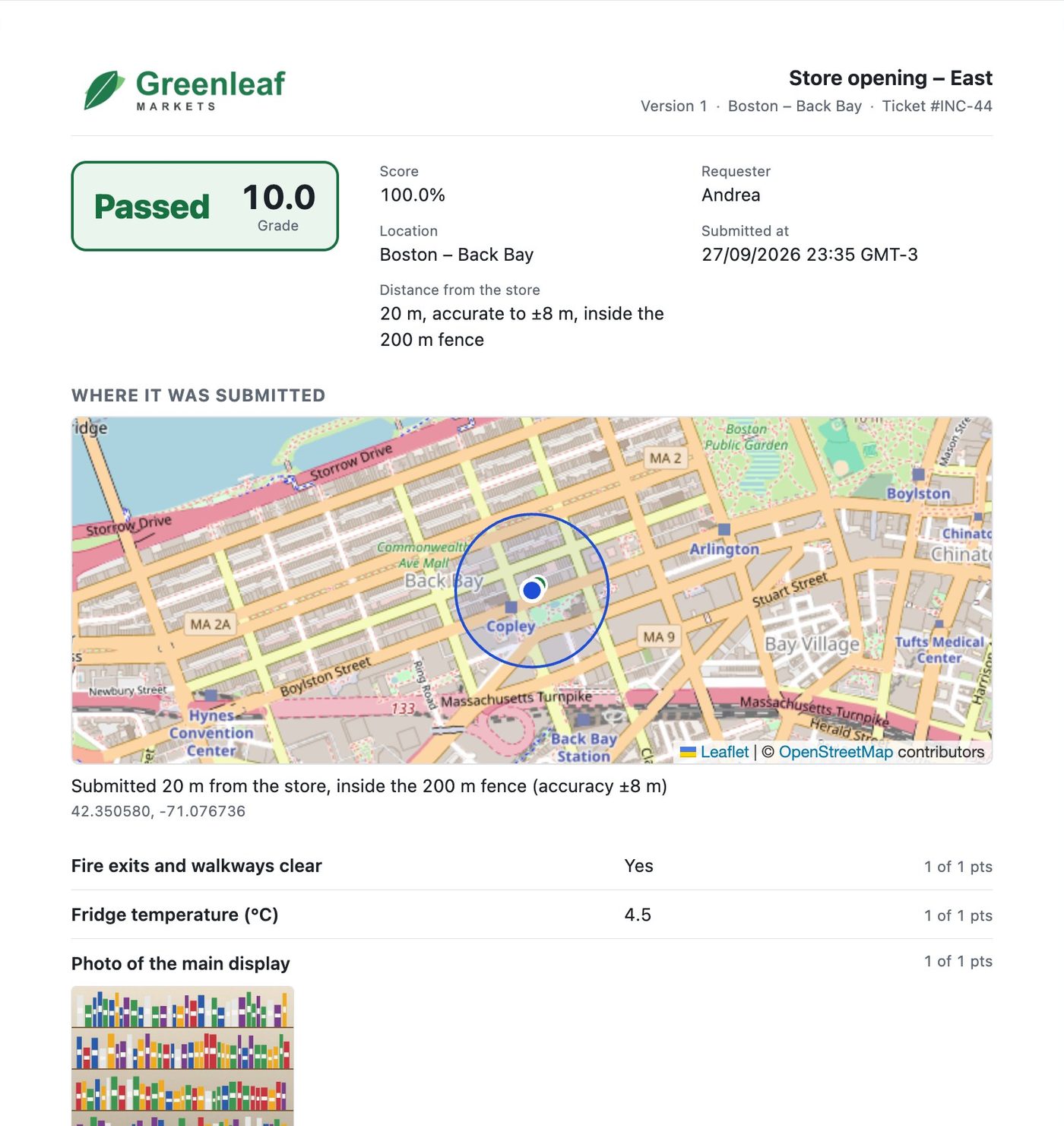
Every page has your logo, the checklist's name and version, the store and the ticket in the header, and the ticket, requester, submission time, page number, print time and Made by Red Lotus Tecnologia in the footer. The body has the result and the grade, a map of where it was submitted with the distance from the store, every answer with its points, the comments, the photos and the signature.
15. Dashboard and sent checklists
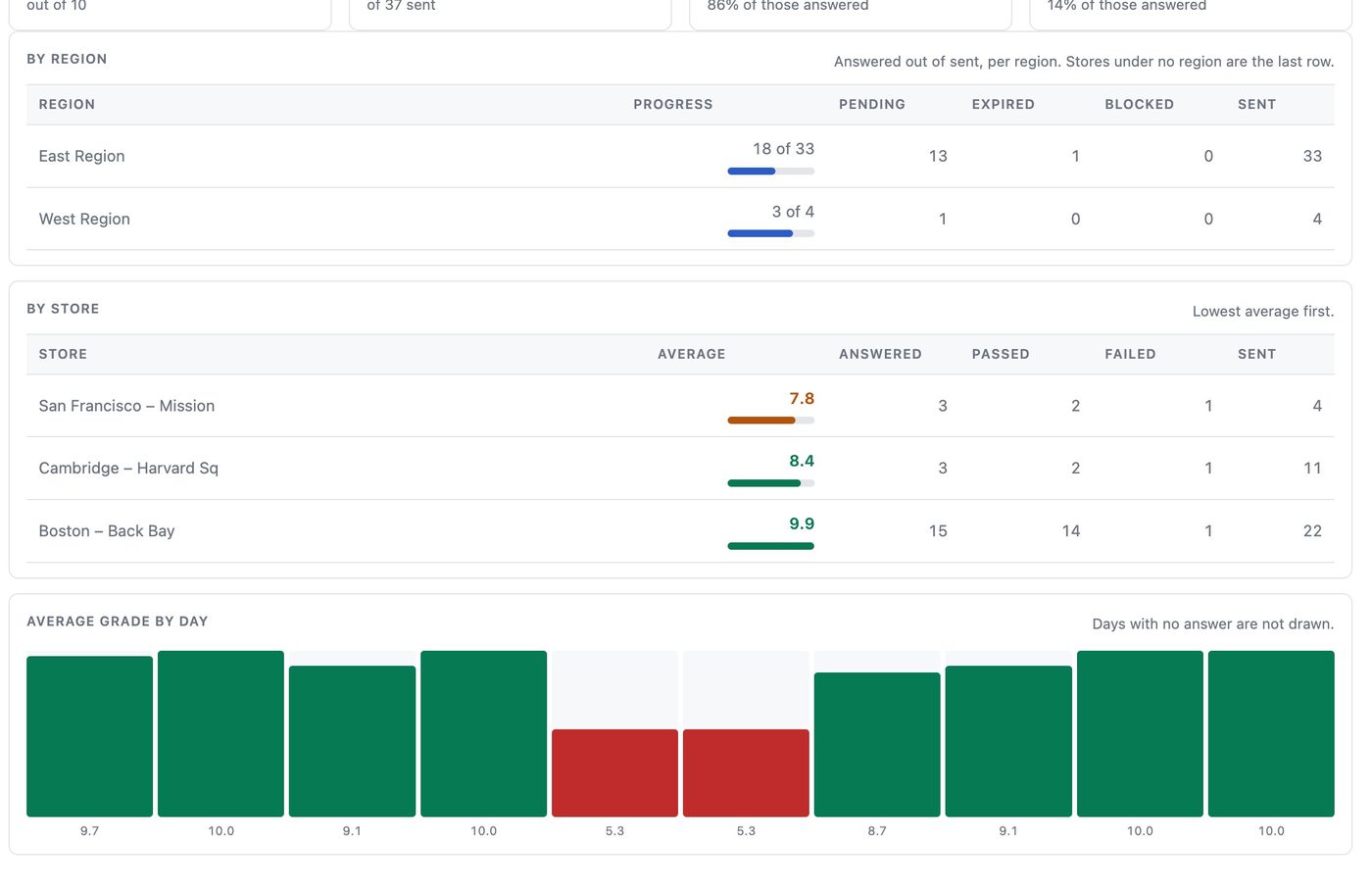
Dashboard filters by checklist, region, result and a date range. It shows tiles for Pending, Started, Answered, Expired and Blocked; the average grade out of 10; answered out of sent; passed and failed with their percentages; a table By region; a table By store with the lowest average first; and the Average grade by day. It refreshes every 60 seconds.
Sent checklists is the full list: ticket, checklist, requester, Location, status, result, grade, and when it was sent, submitted and expires. Filter by checklist, region, status, result, a grade range, part of the requester's email, ticket number, and a date range on created, sent, submitted or expiry date. Export CSV with these filters downloads what you see (semicolon-separated, opens in Excel). Each row has Result, Resend and Reopen.
16. Resend, reopen and expiry
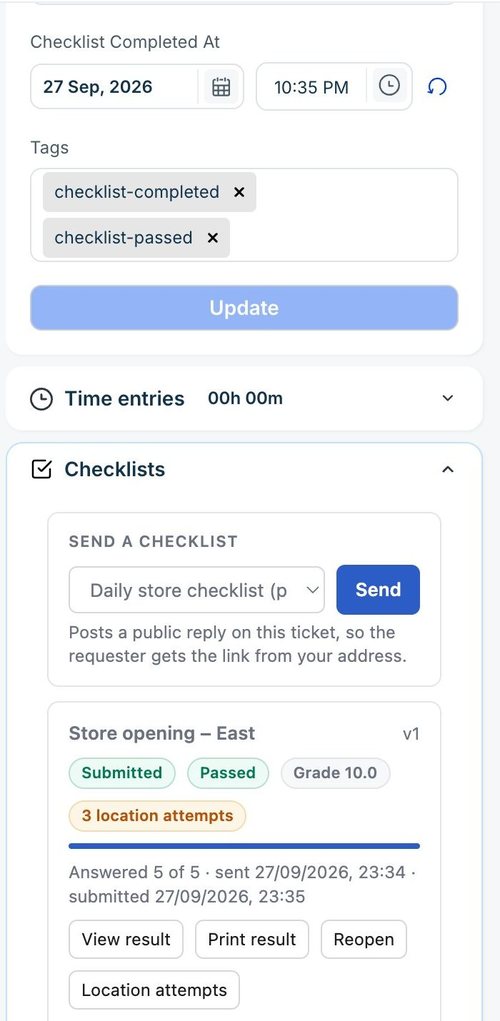
- Resend link sends the same link again, for a requester who lost the email.
- Reopen sends a new link and voids the old one. The answers already given are kept, so the requester picks up where they left off, or corrects a submitted checklist.
- View result shows the answers inside Freshservice. Location attempts lists every attempt with when, the outcome, the distance and the accuracy.
- Expiry. A checklist not submitted by its expiry date stops accepting answers. See reminders and expiry.
17. Archive and delete
- Delete is only offered for a checklist that was never sent. It is gone for good.
- Archive is for everything else. It stops new sends, including its schedule, and keeps the history: sent checklists, results and reports stay visible.
18. Troubleshooting
| What you see | What to do |
|---|---|
| The installation page refuses the key | Copy the key again from the agent's profile. Make sure that agent is active and holds an agent role in the workspace, not only Account Admin. |
| 403 on tickets | The key's user has no agent role in the workspace. Give it one, then Test connection on Settings. |
| The checklist fields stay empty | Check the labels and dropdown choices against section 2. The key's user needs an admin role that can see Field Manager; without it reading the fields returns 403. |
| Settings says the key is no longer accepted | It was revoked, or its owner lost access. Replace key on Settings. The new key applies from the next call. |
| Send says the ticket has no requester or no email | Set the requester, or add an email to their contact record. |
| Send says the requester does not qualify | The checklist limits who can answer. Check the contact's job title, department and Location, or the list under Who can answer. |
Status No location, tag checklist-blocked | No location source gave coordinates. Give the ticket's Location an address with a postcode, fill in the coordinates field, or set a fixed point, then send again. |
| The requester is outside the fence but is at the store | Ask them to turn on precise location for the browser and try again outdoors or near a window. If GPS is poor at that store, raise the accuracy limit, or the radius. |
| A scheduled run skipped a store | Last 10 runs gives the reason: the Location has no contact email, its contact is not a requester and creating one is off, the Location has no coordinates, or the checklist is not published. |
| Print result shows an expired link | Print links last a few minutes. Press Print result again on the ticket. |
19. Questions
Do requesters need a Freshservice licence or an app? No. They open a link in the phone's browser.
Can a requester answer from a computer? Yes, if the checklist is not geofenced. A fenced checklist needs a device that can give a precise position, which in practice means a phone.
What if we change a checklist after sending it? Publishing creates a new version. Checklists already sent keep their version until they are submitted or expire.
Where is the data kept, and for how long? On the service in Microsoft Azure (westus2), for the number of days you set after the ticket closes, 90 by default. The ticket, its notes and attachments stay in Freshservice. See the privacy policy.
What happens if we uninstall? Nothing is deleted from Freshservice. The service's copy is purged by your retention period.
Can it be translated or adapted? The app speaks English and Brazilian Portuguese. For anything else, write to info@redlotus.com.br.
More about the app on the Checklists page. The terms of service cover the licence, billing and support.