The clock file, reviewed. One ticket per employee.
Every month HR gets the time clock’s file and has to find who missed a punch, who arrived late beyond the tolerance, who punched on a holiday, and then write to each of them and chase the answers by email. Time and Attendance reads the file in the browser, compares every day with the employee’s work schedule in Freshservice, shows HR what it found, and raises one adjustment ticket per employee, with the manager copied, for the employee to answer.
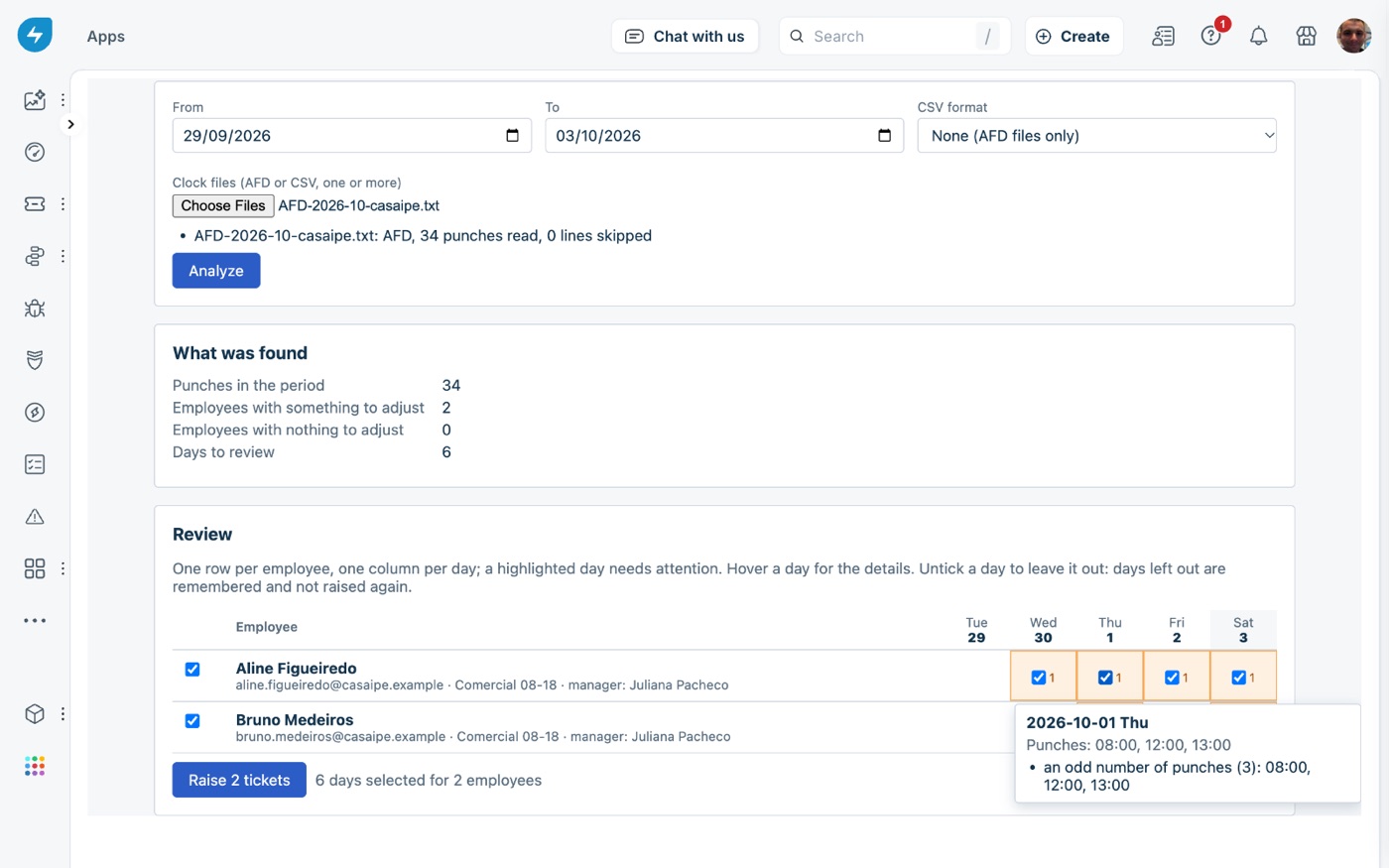
The file in the browser, the schedule in Freshservice, the ticket in the employee’s inbox.
The app runs inside Freshservice as a full page for the HR group. Each worker in the clock file is matched to a requester by an employee id user field, the CPF, PIS or employee number the clock uses, or by email. The employee’s work schedule, reporting manager and language come from Freshservice too. There is no server or database of ours in between. An independent app by Red Lotus, an authorized Freshworks partner.
Reads the clock file in the browser
Brazilian AFD in its three official layouts, or any CSV export described once under File formats. The file is never uploaded or stored anywhere.
Compares every day with the work schedule
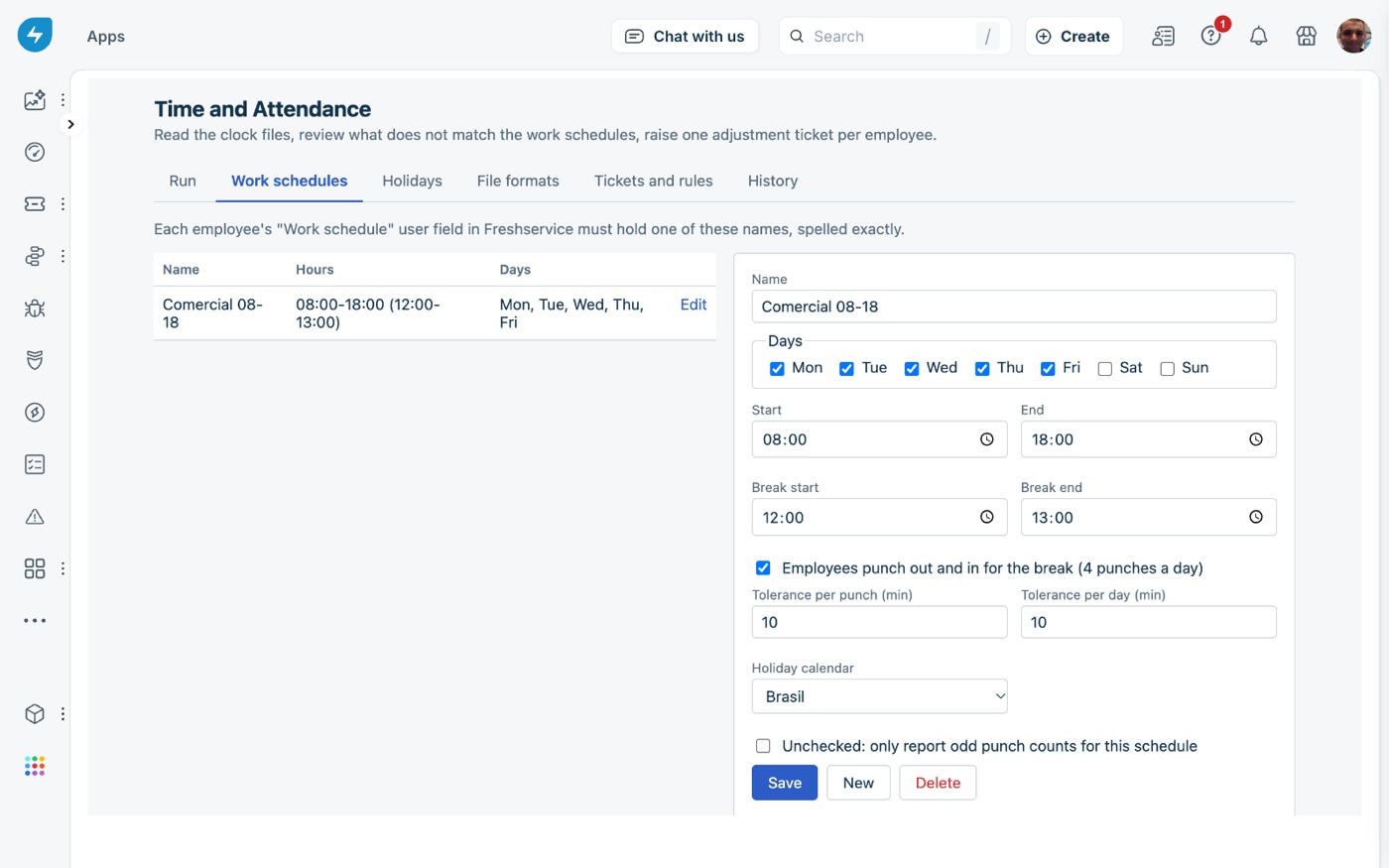
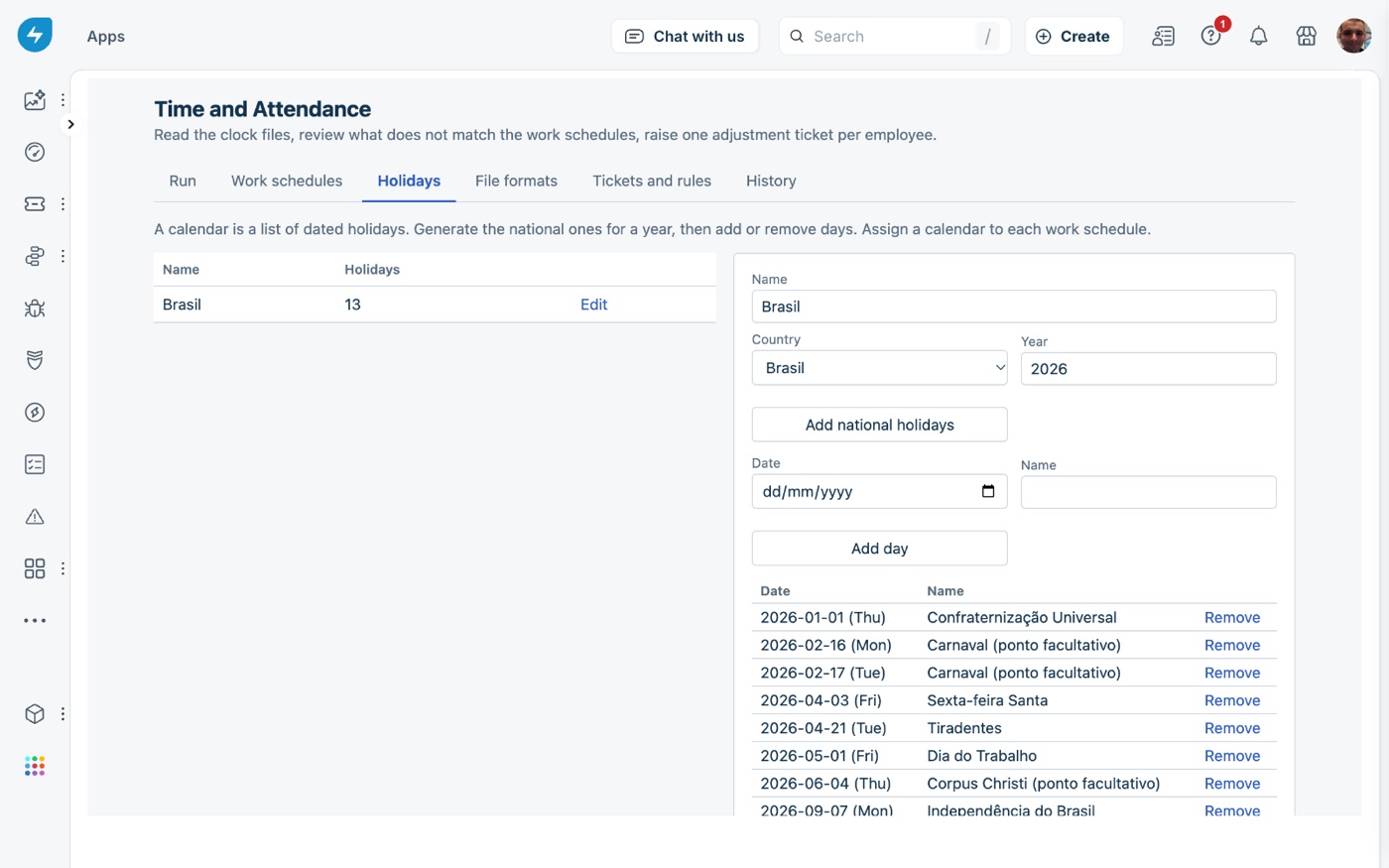
Weekdays, hours, break, tolerance per punch and per day, holiday calendar. HR turns on the rules: no punches on a working day, odd punch count, late arrival or early leave, break length, punches on a day off or holiday, overtime beyond a threshold.
Raises one ticket per employee
The employee is the requester, the manager is copied, the text is in the employee’s language with your own subject, opening and closing, and the days and punches listed in between. Freshservice emails it and keeps the answer.
What HR sees.
Screenshots of the app with a made-up company, Casa Ipê: every name, e-mail address and number below is invented.
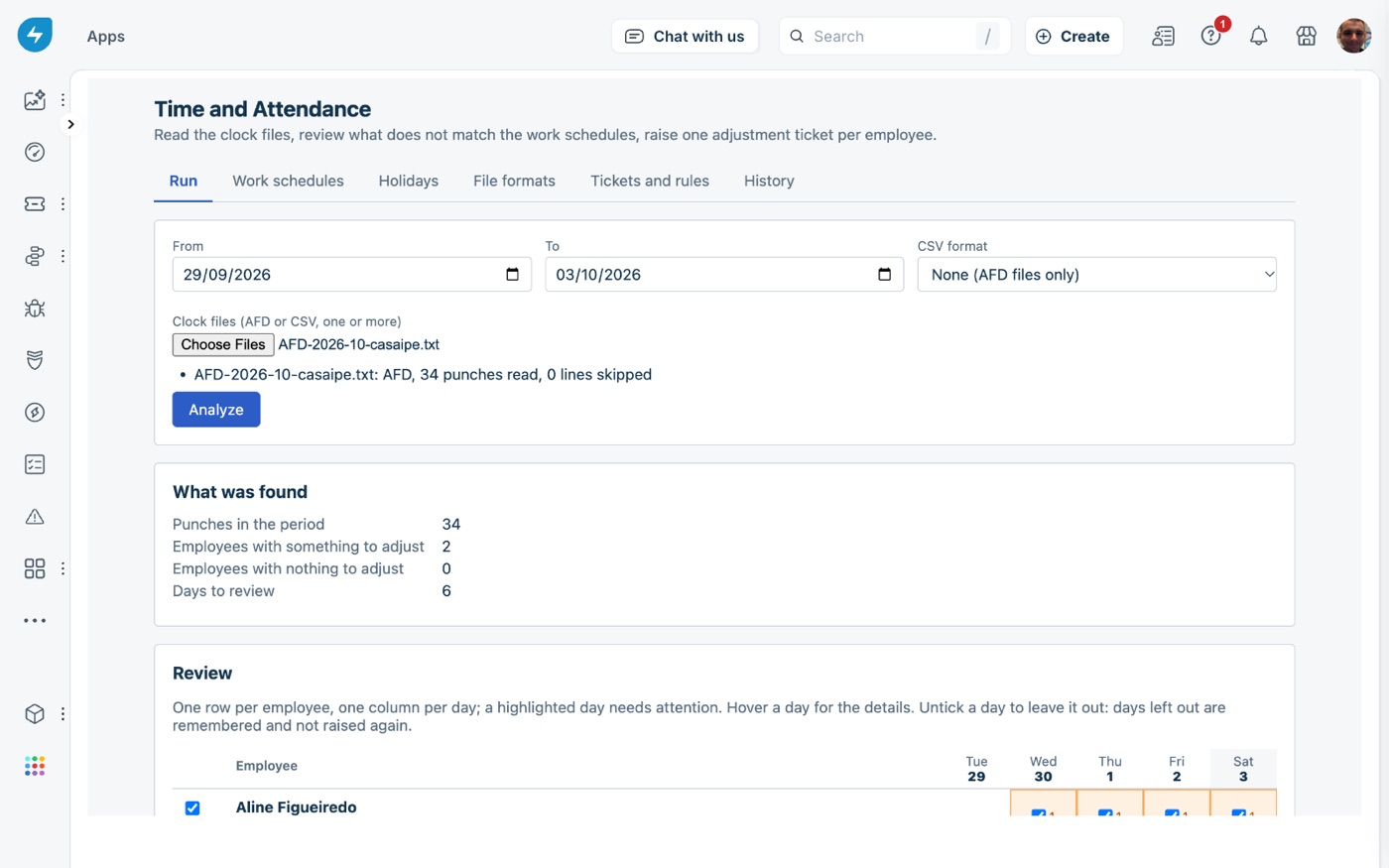
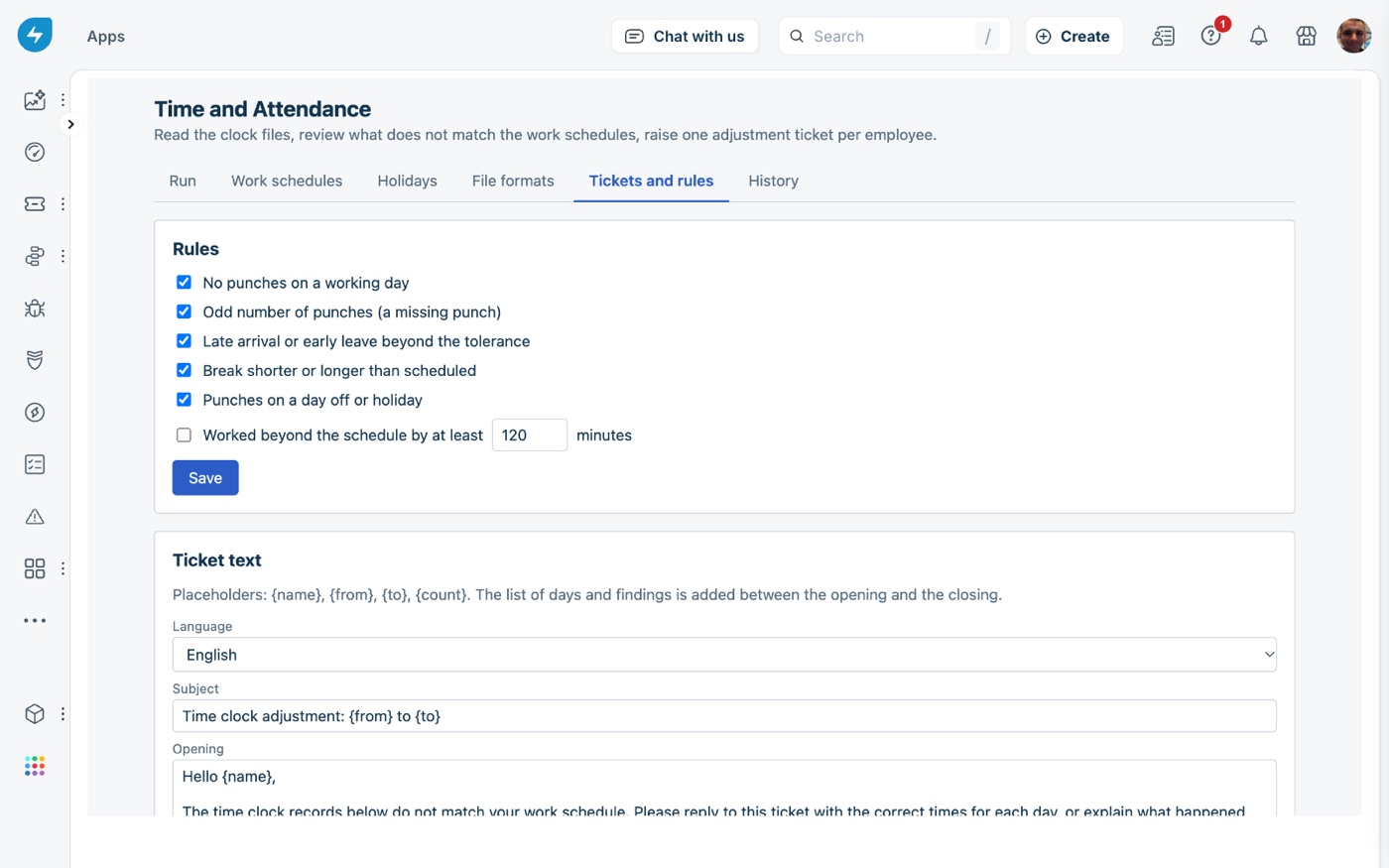
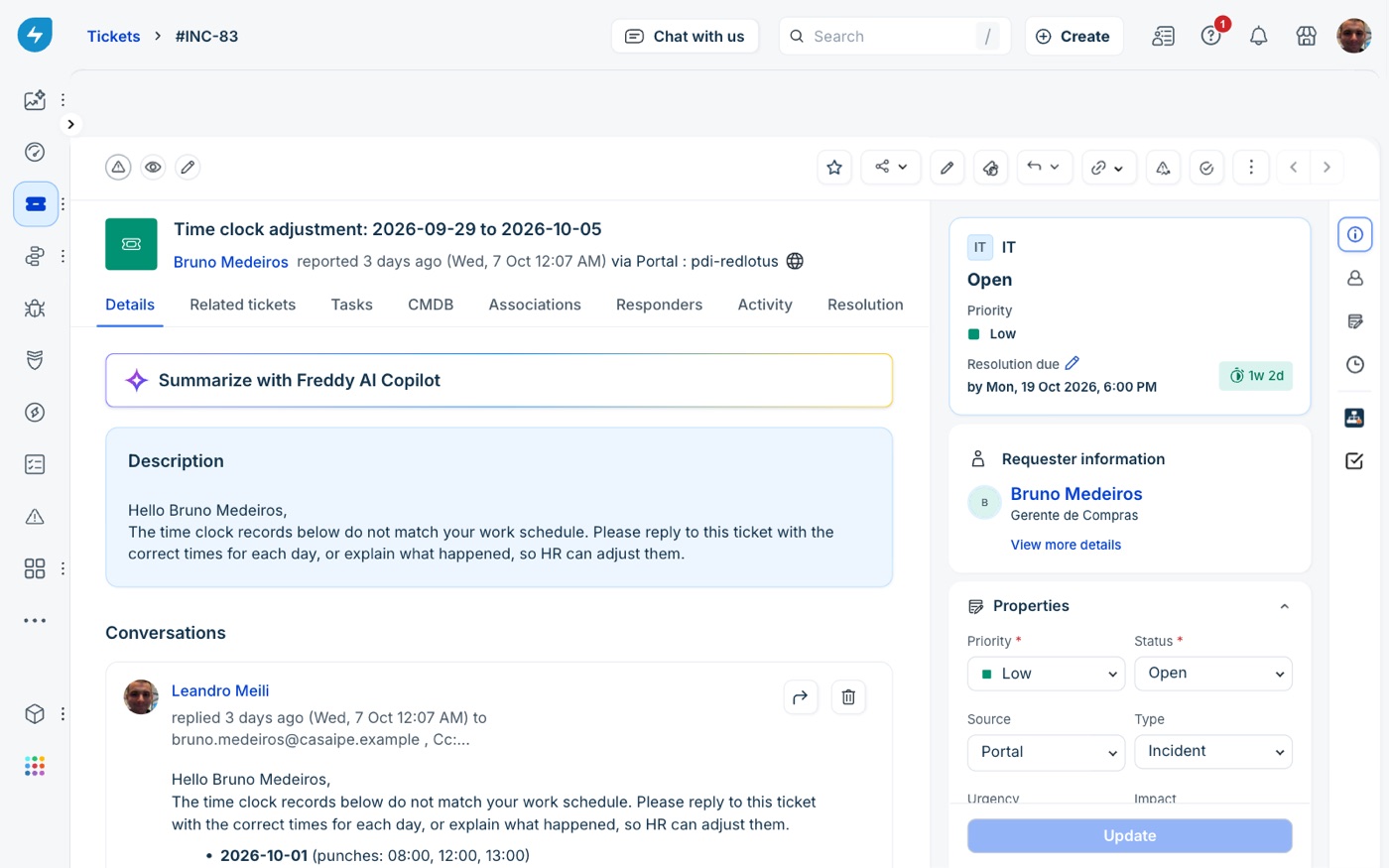
For HR teams that get the clock file every month.
In Brazil the AFD is the legal record and every adjustment needs the employee’s own word; elsewhere it is a CSV export and the same chase. The app does the finding and the writing. HR keeps the judgement: what to raise, what to leave out, and what to do with each answer.
Brazilian AFD, all three layouts
Portaria 1.510/2009, INMETRO 595/2013 and Portaria 671/2021, recognised from the file itself. Nothing to configure.
Any CSV export
Describe the worker id, date and time columns and the date order once under File formats. Every month’s export reads the same way.
One week at a time
The review grid pages by week. Each day shows how many punches it has and why it was flagged, and the ones already raised or dismissed in an earlier run are marked.
Nothing raised twice
Days raised or dismissed are remembered for 12 months. Running the same month again, or a period that overlaps the last one, does not write to anyone twice.
Resumes and retries
An interrupted run picks up where it stopped. A ticket that failed is retried from the Done step without sending the finished ones again.
History
Every run with who ran it, the period, the files and how many tickets were raised.
About twenty minutes to install.
Two user fields
Add an Employee id field and a Work schedule dropdown to the requester fields, and give each employee the id the clock uses, a work schedule, a reporting manager and a language.
Install
Paste your Freshservice domain and an admin’s API key, then the HR group id and the workspace and group the tickets go to. The install page checks the key and the two fields before it lets you install.
Set up in the app
Define the work schedules and a holiday calendar, tick the rules, write the ticket text, and run the first month from the Run tab.
It works on Freshservice. Freshservice shows full page apps to agents only, so the HR staff who run it need to be agents in the HR group; other agents see a message and nothing else. The app is in English and Portuguese (Brazil), and the tickets go out in the employee’s own language, English or Portuguese.
The clock file never leaves the browser.
The app has no server of ours. The clock file is read in the HR agent’s browser and is never uploaded or stored. The app calls only your own Freshservice API through the Freshworks platform, and keeps HR’s definitions, the run history and a 12-month memory of which employee had which day raised or dismissed in the app’s storage on the Freshworks platform, inside your account. Nothing is sent to Red Lotus or to any third party: no outside script, CDN or service.
The Freshservice API key is a secure installation parameter: the Freshworks platform keeps it encrypted and never sends it to the browser. Uninstalling deletes the app’s storage; the tickets and replies are yours and stay in Freshservice.
Questions before you install.
How much does it cost?
USD 149 per Freshservice account per month, whatever the number of agents. Freshworks does the billing, on your Freshworks account. We never see your payment details.
Does it change the time records?
No. It raises the ticket with the days and punches in question; the employee answers on the ticket, and HR adjusts the record in the clock system or payroll with the employee’s word on file.
Which clock files does it read?
Brazilian AFD in the three official layouts, with no setup, and any CSV export once its columns are described under File formats. Several files can go into one run.
What if a worker in the file is not in Freshservice?
The ids the app could not match are listed as warnings after Analyze, and nothing is raised for them. Put the employee id on the requester and run again.
What happens if I uninstall?
The tickets and replies stay in Freshservice. Freshworks deletes the app’s storage: the schedules, calendars, rules, ticket text, history and the memory of raised days.
Where do I get it?
It is on its way to the Freshworks Marketplace. Until it is listed, talk to us and we install it in your account as a custom app.
A month of punches, reviewed in an afternoon.
We install it, set up the fields, the schedules and the calendar with you, and run the first month together. Come talk to us.
Back to all solutions